
Evoto AI review: I tested this AI photo editor to see if it could replace hours of Photoshop retouching. Here’s what surprised me! 👇
I honestly can’t believe I’m just now discovering this tool.
After over a decade of editing wedding photos, I thought I had my workflow pretty dialed in… but this one tool completely changed the way I approach some of the most time consuming parts of editing.
And if you’re a wedding photographer who spends hours after every wedding cleaning up skin, removing distractions, and retouching hundreds of images (or even thousands), you know how quickly the little edits can add up.
Evoto AI is the most powerful editing tool I’ve discovered in my entire photography career, and I don’t say that lightly.
I didn’t try Evoto AI because I wanted AI to edit my photos for me. I started testing Evoto because I needed help getting through the hundreds of tiny adjustments that were stealing so many hours of my time after each wedding.
So in this Evoto AI review, I’m going to show you exactly how I use it in my editing workflow, which features actually save me time, and what I think photographers should know before trying it.
1. Portrait Retouching
The Portrait Retouching Panel is absolutely fantastic! You can retouch so much while still keeping your image looking realistic. Some of my favorite tools inside Portrait Retouching are:
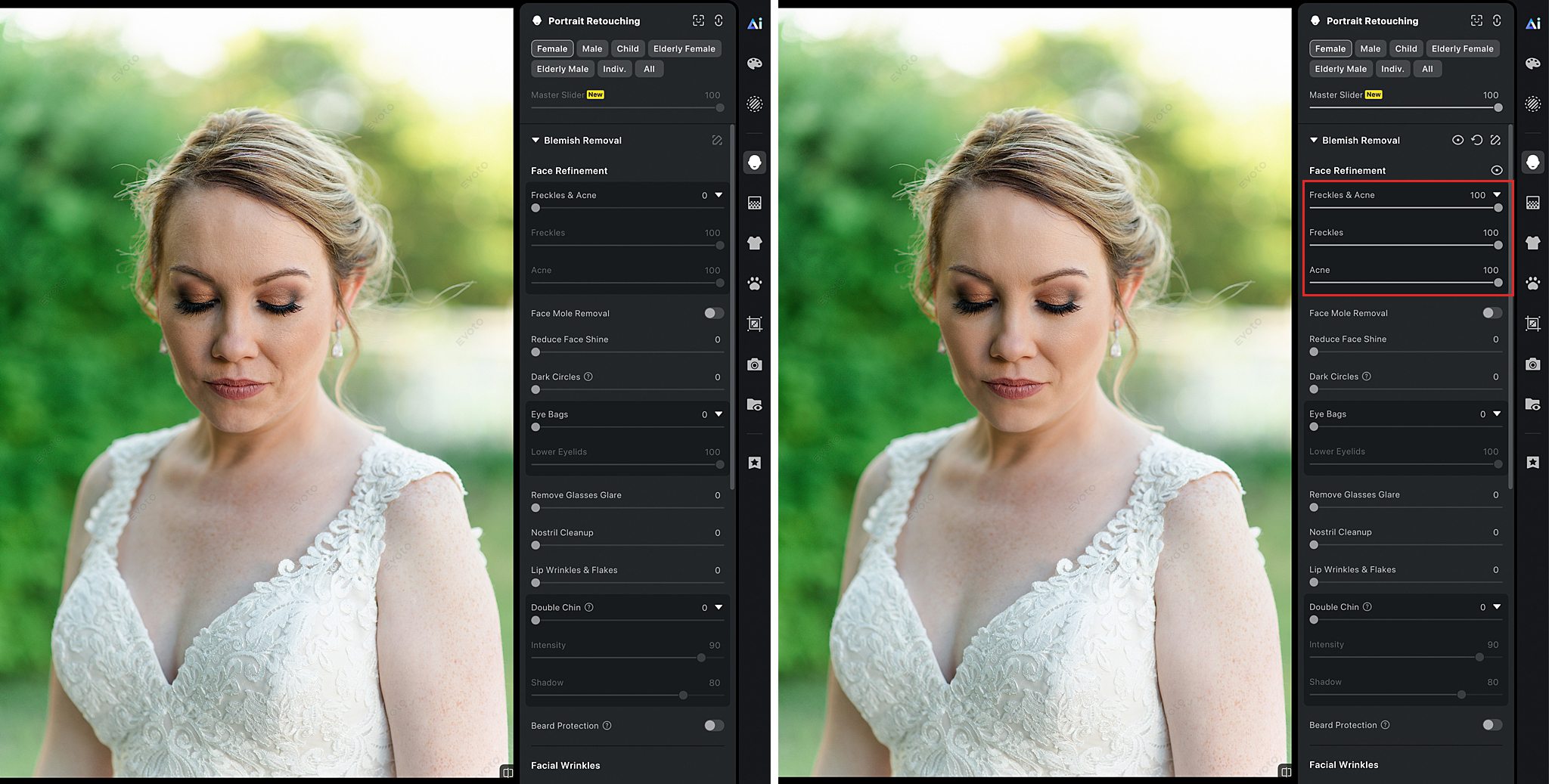
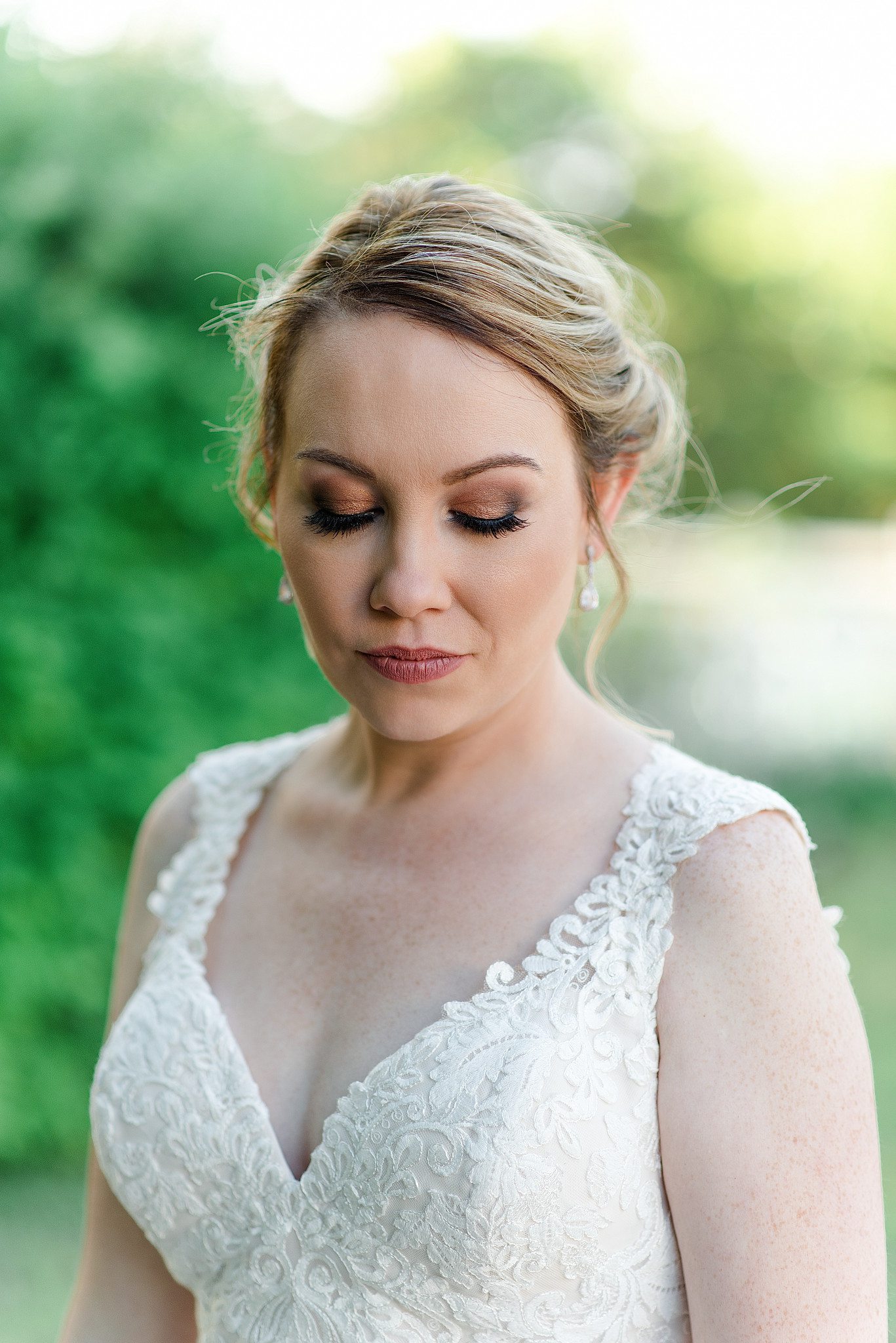
The Blemish Removal Tool: It can remove acne with one click while keeping freckles intact. You can also control the amount of freckles peeking through as well.
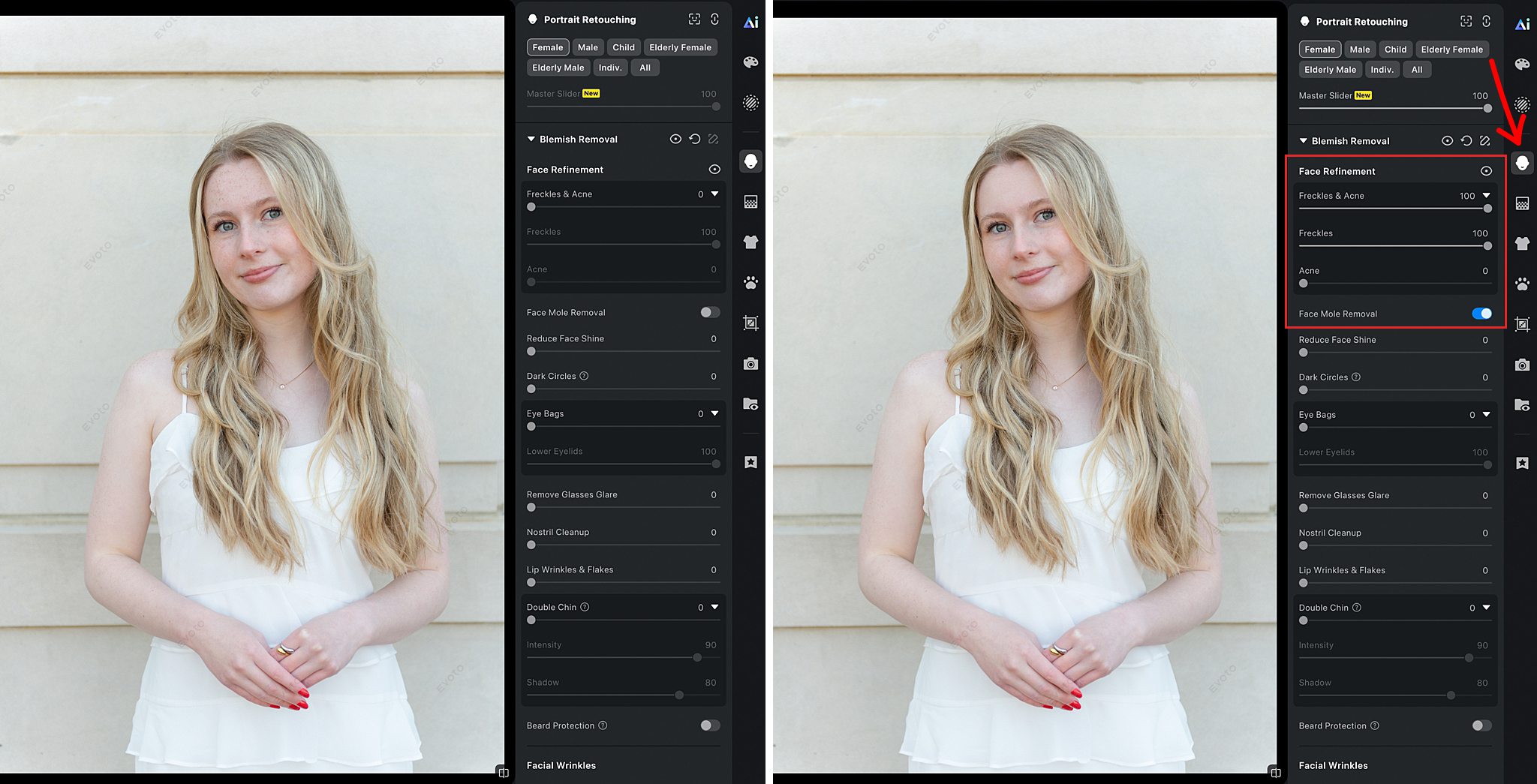
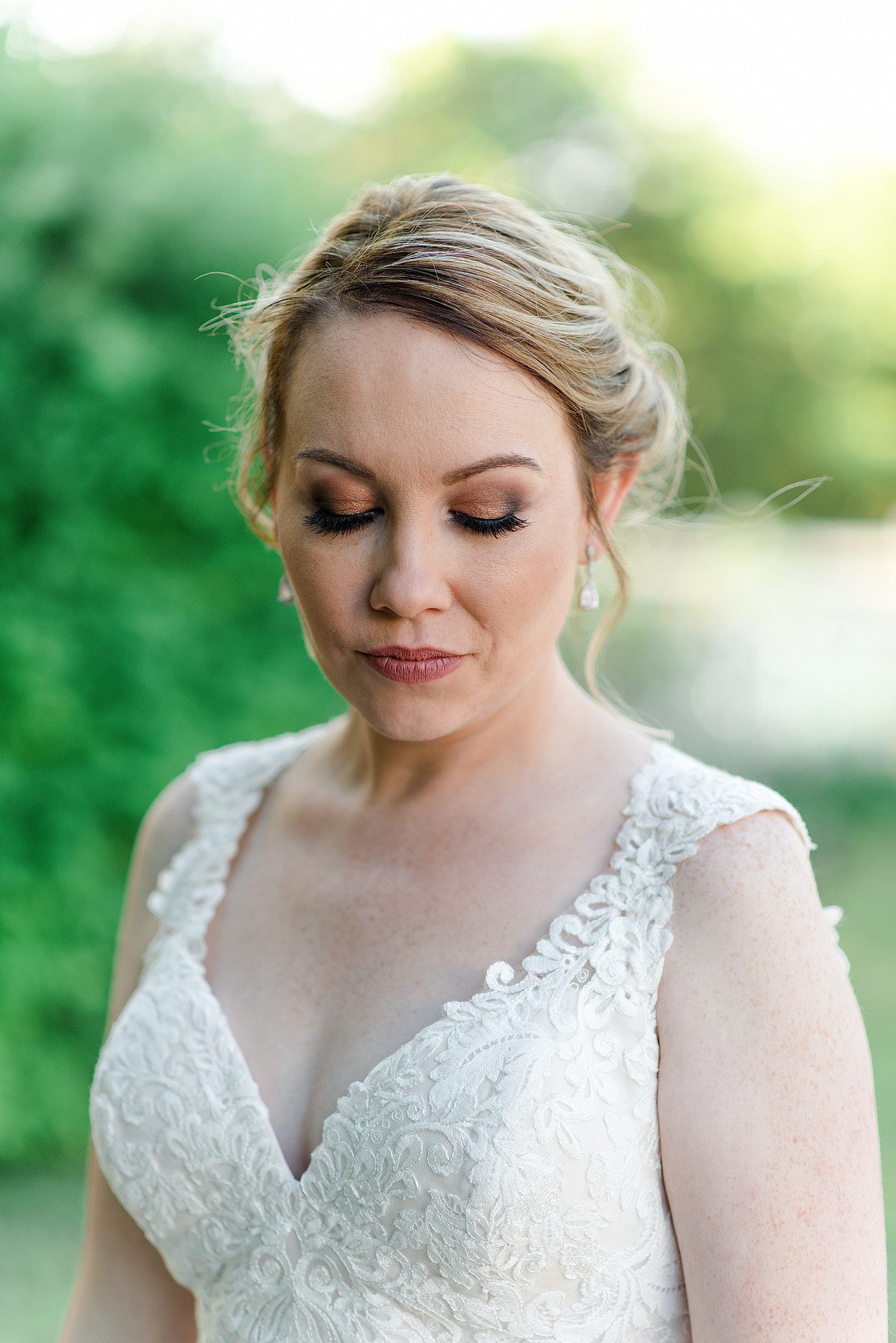
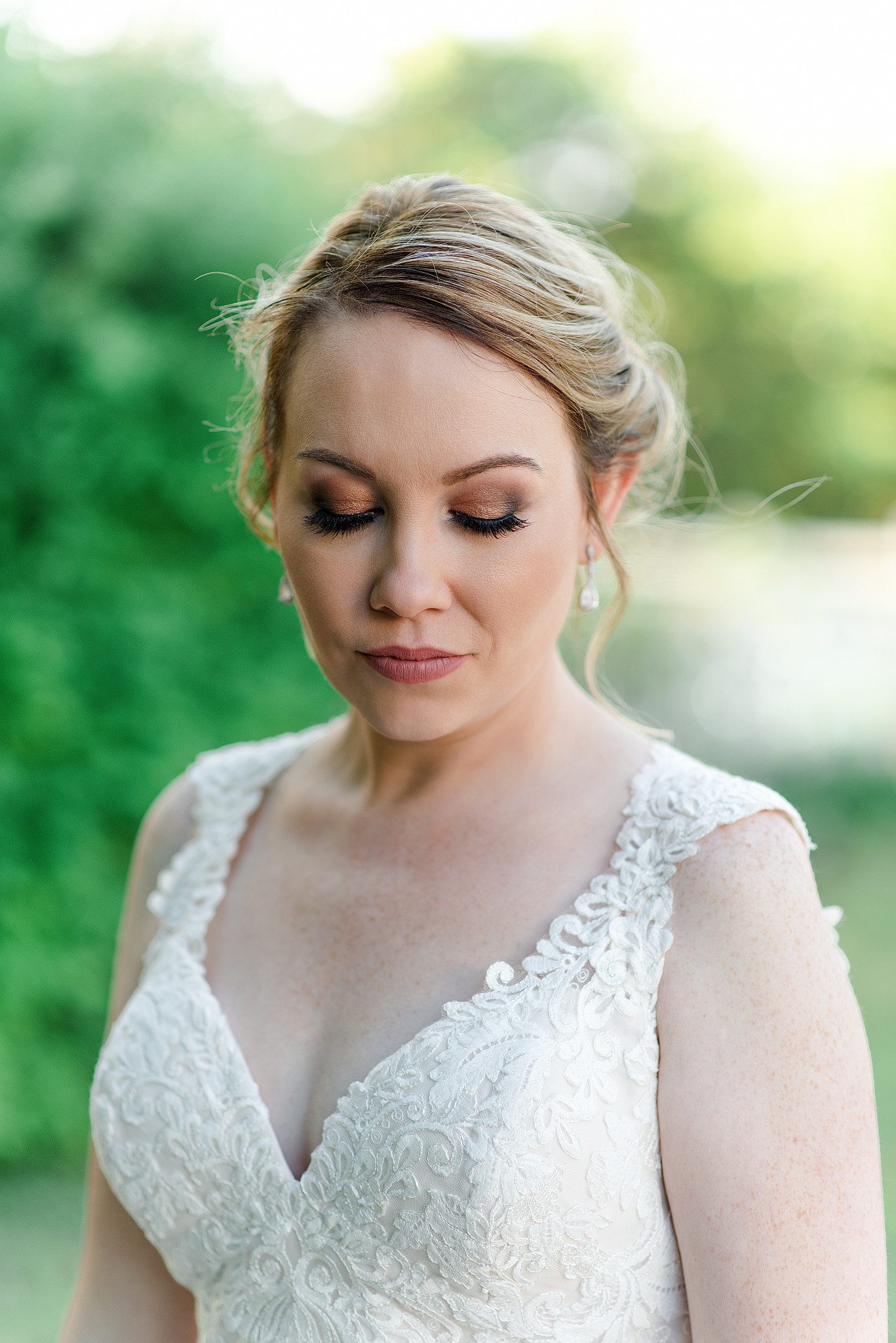
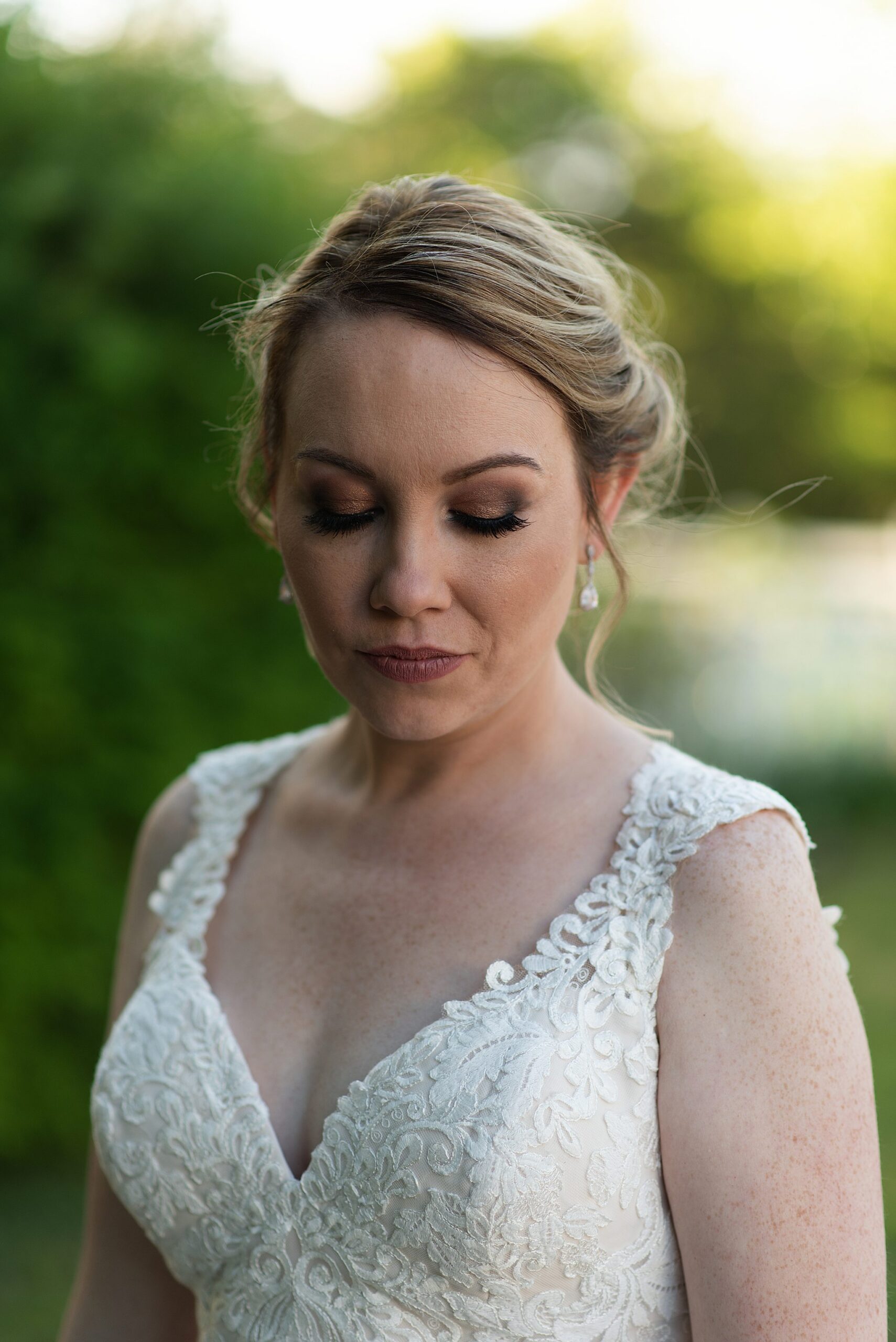
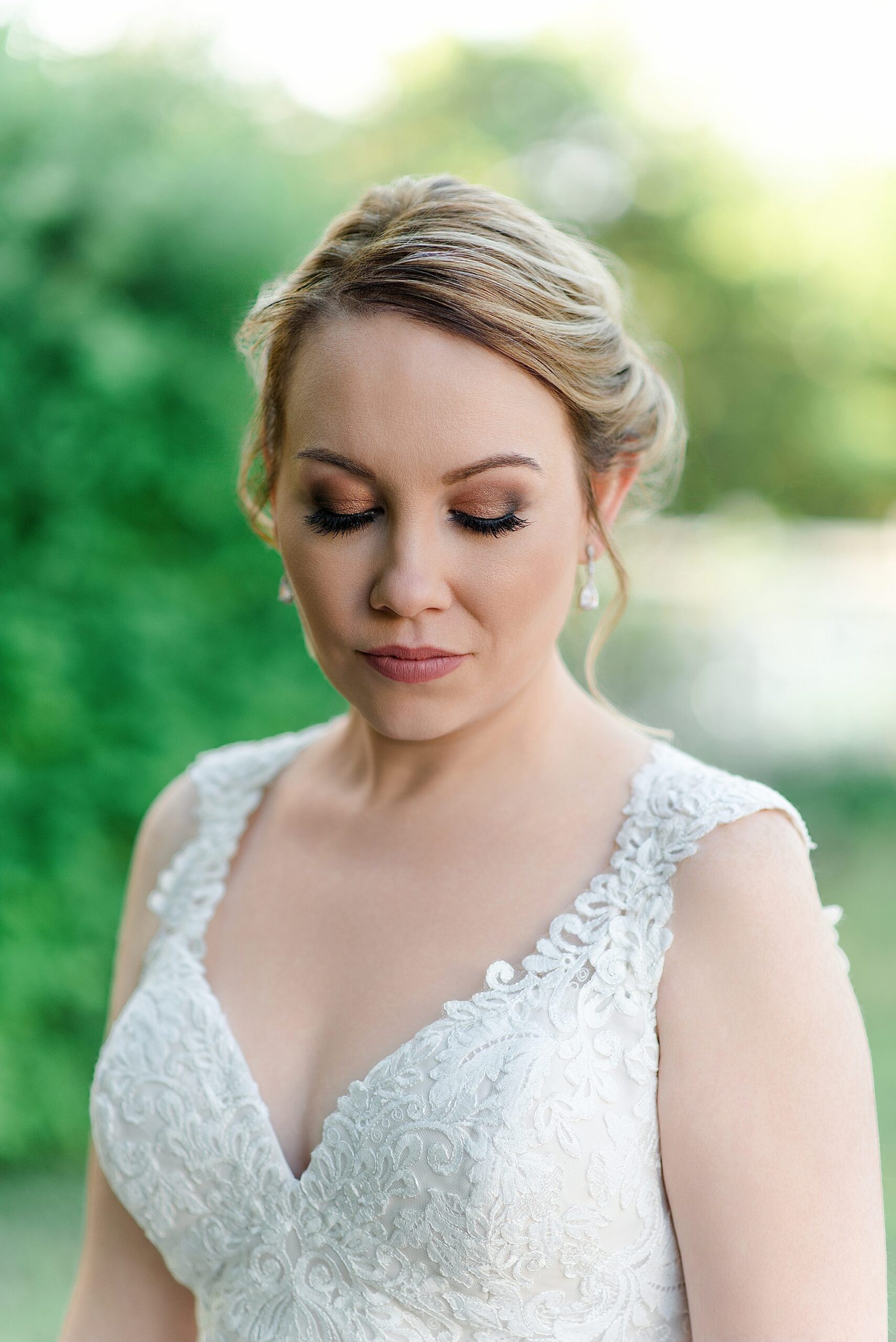
This tool is amazing for clearing up the skin. In the example below, I used it on a bridal portrait. Look how beautifully it cleared the skin while maintaining the skin texture.
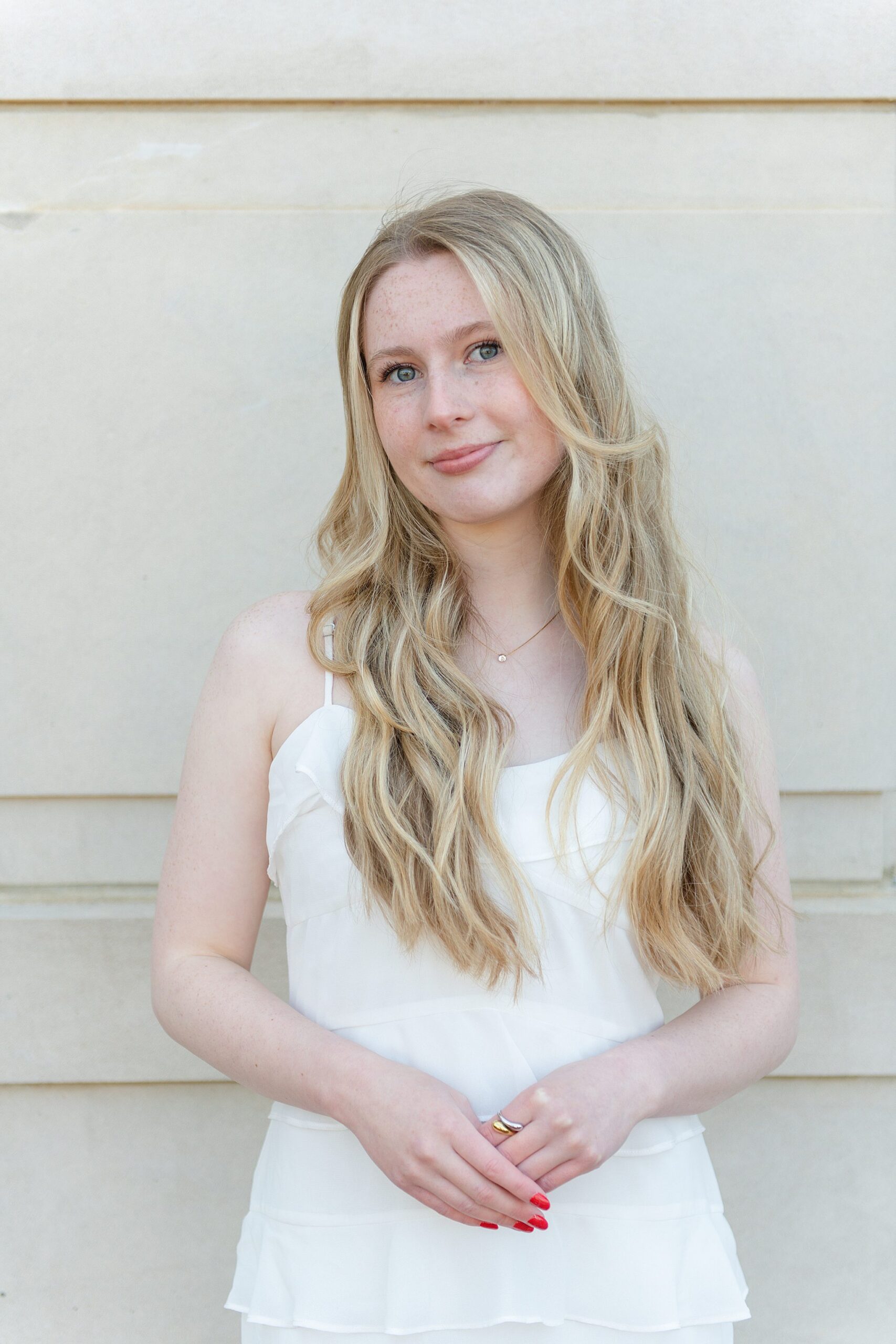
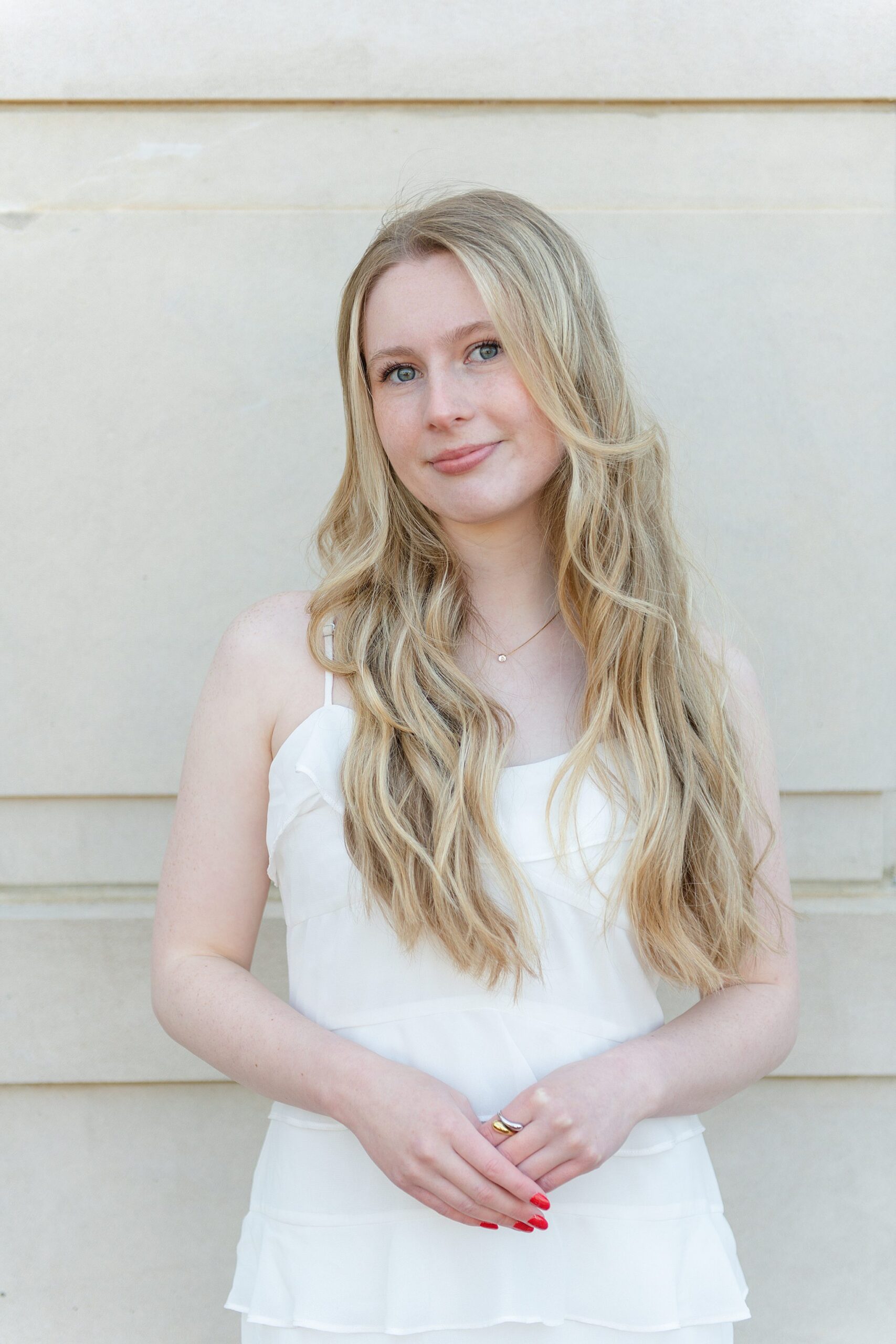
Here I used it to clean up the face in a maternity portrait. I also enabled the Face Mole Removal Tool in this one.
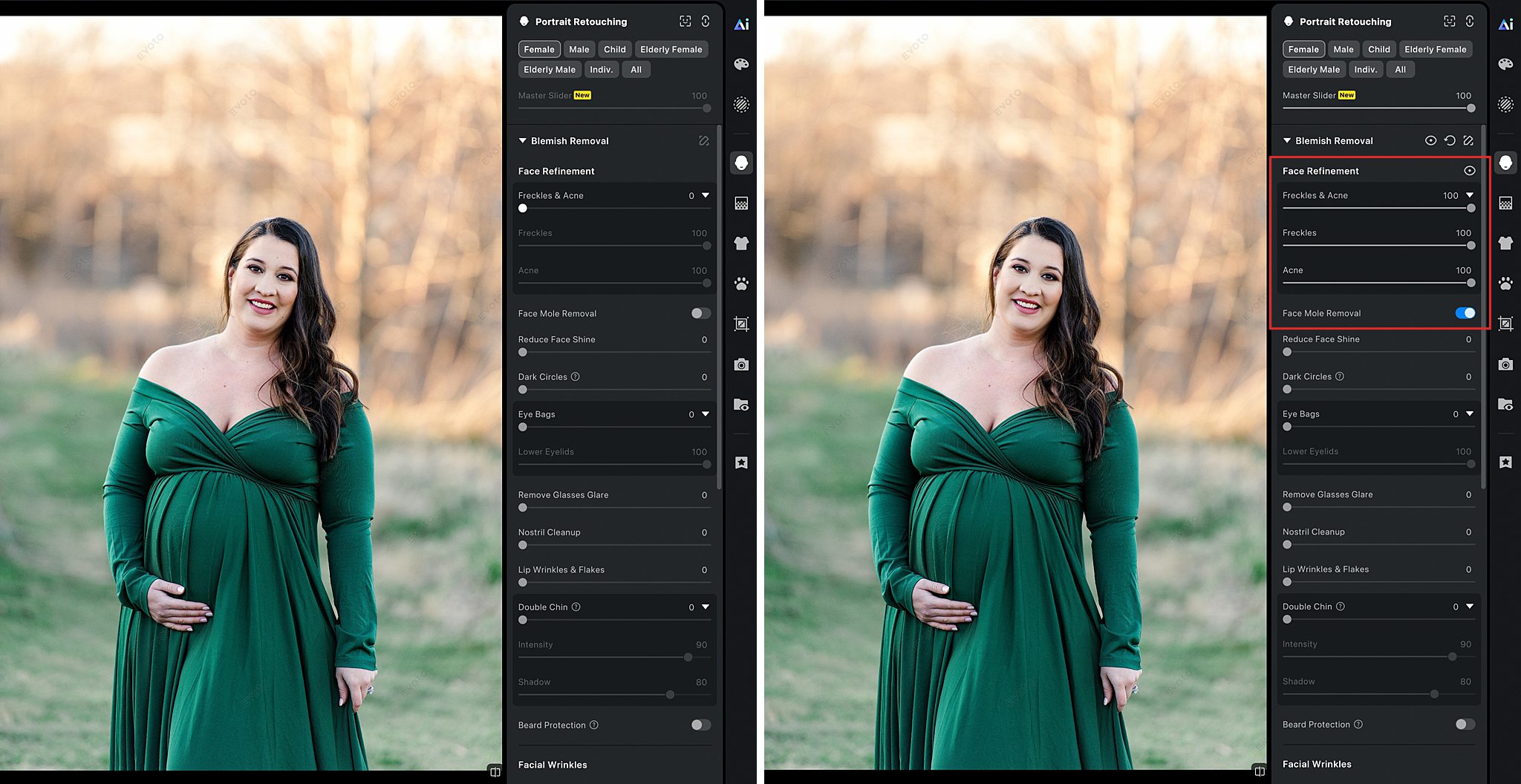
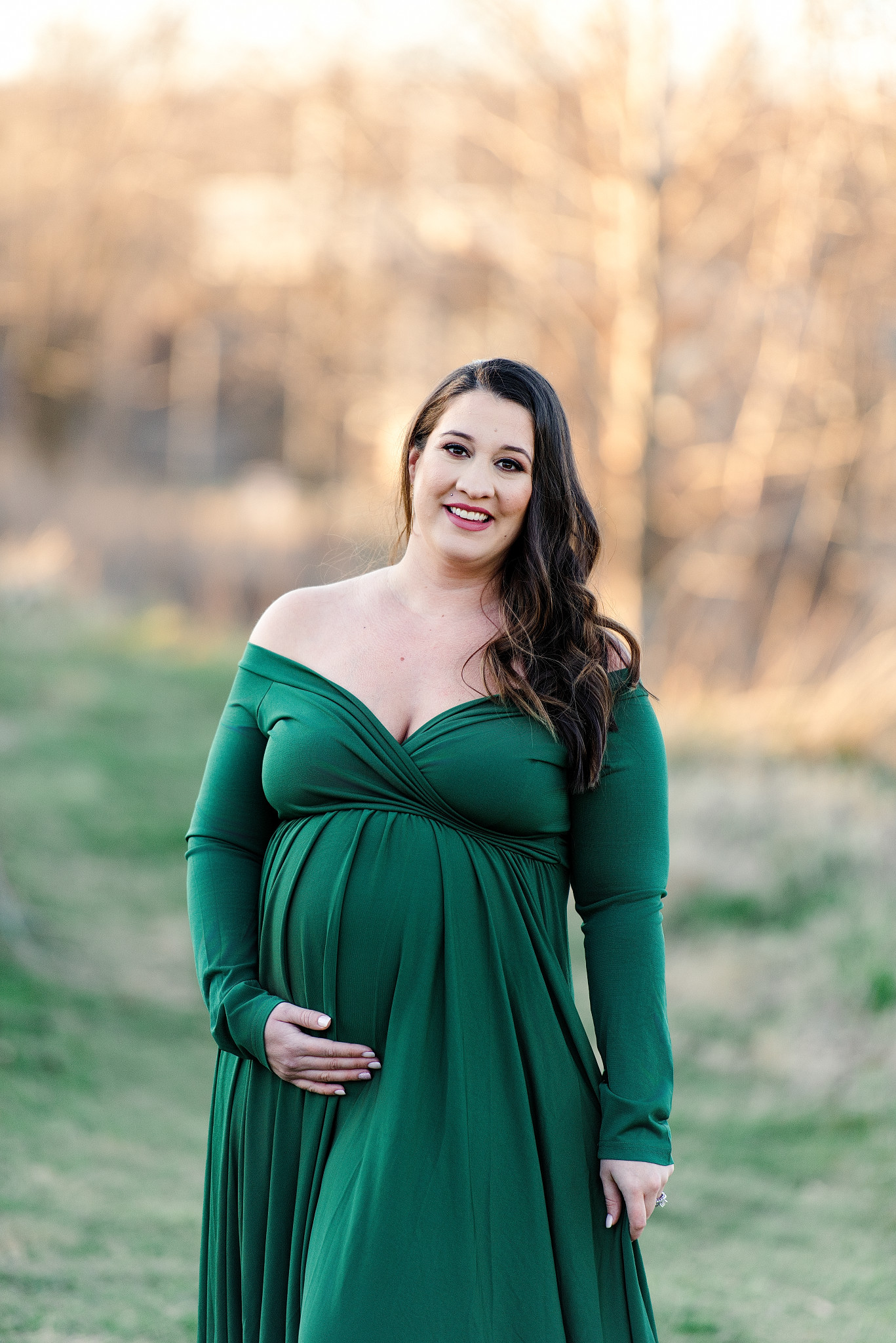
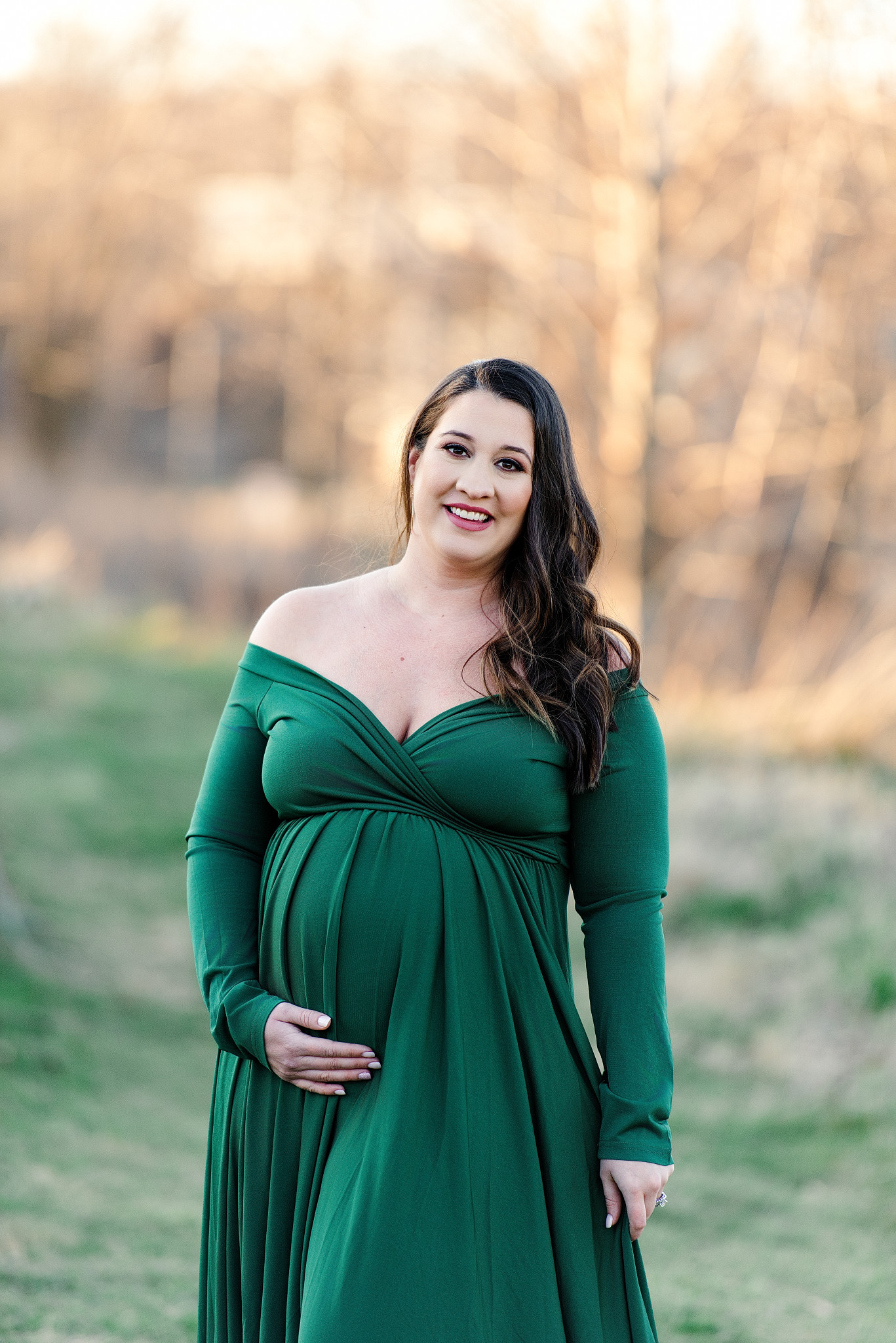
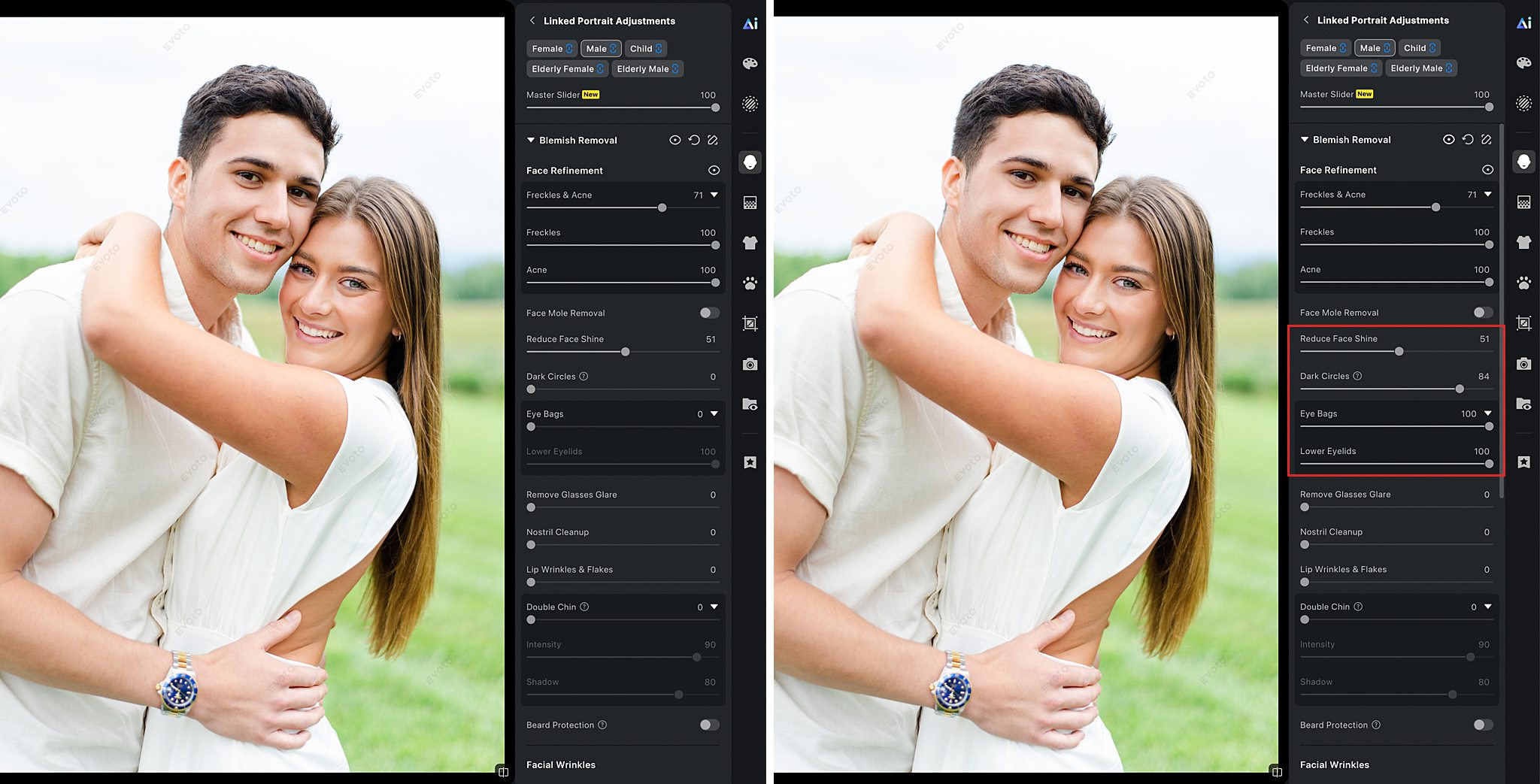
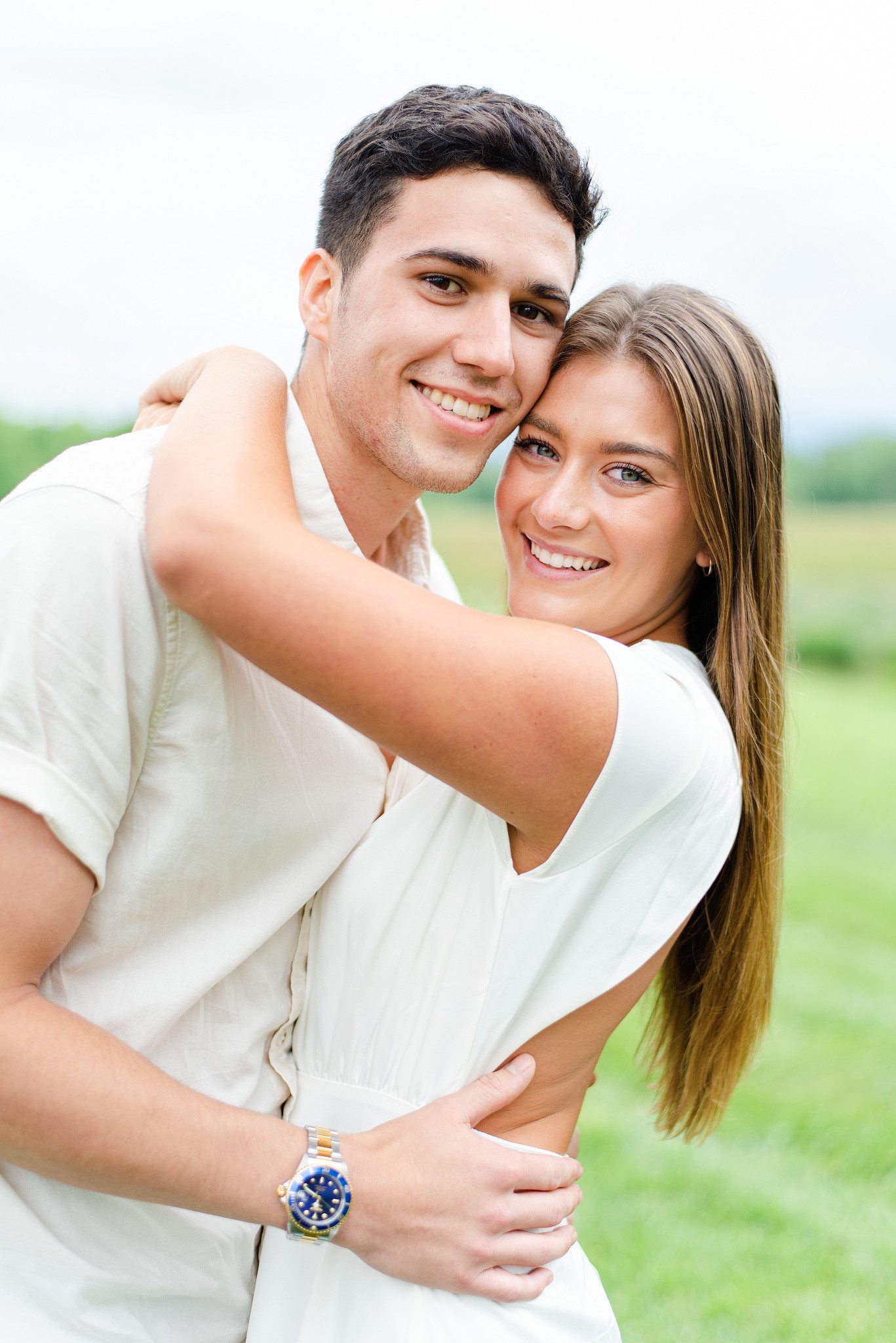
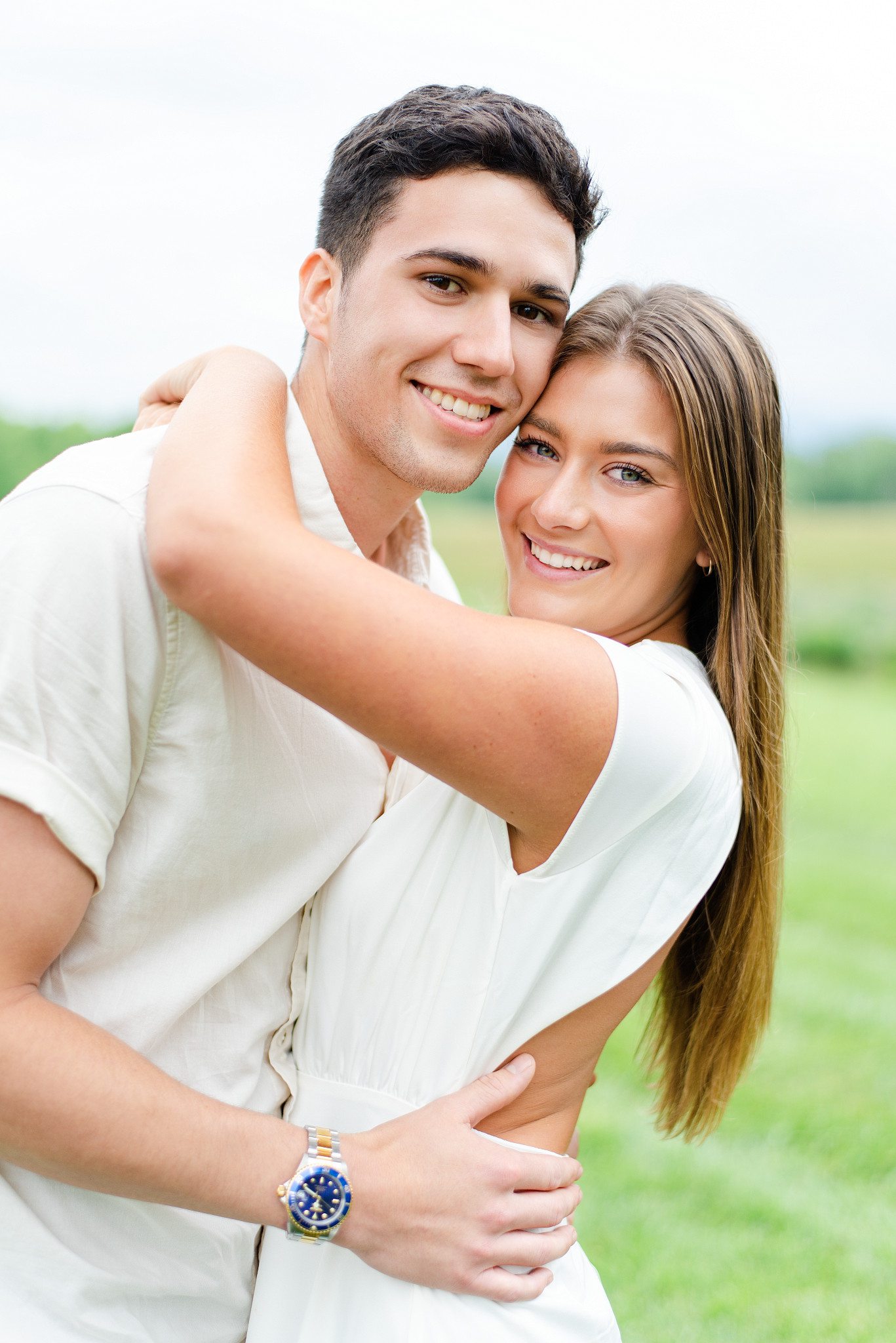
Another tool I absolutely love is the Eye Bag Removal Tool. Before, I used to take every single image in Photoshop and use the Clone Stamp tool to manually lighten the under eyes. Now, all I have to do is move a slider up in Evoto for a realistic and natural look without second guessing myself. I also lightened the dark circles under the eyes and reduced the face shine a little bit in the image below. Also, if you look at the very top of the panel, you’ll notice that Evoto allows you to work on each person individually. You don’t have to create masks or make manual selections. 🤯
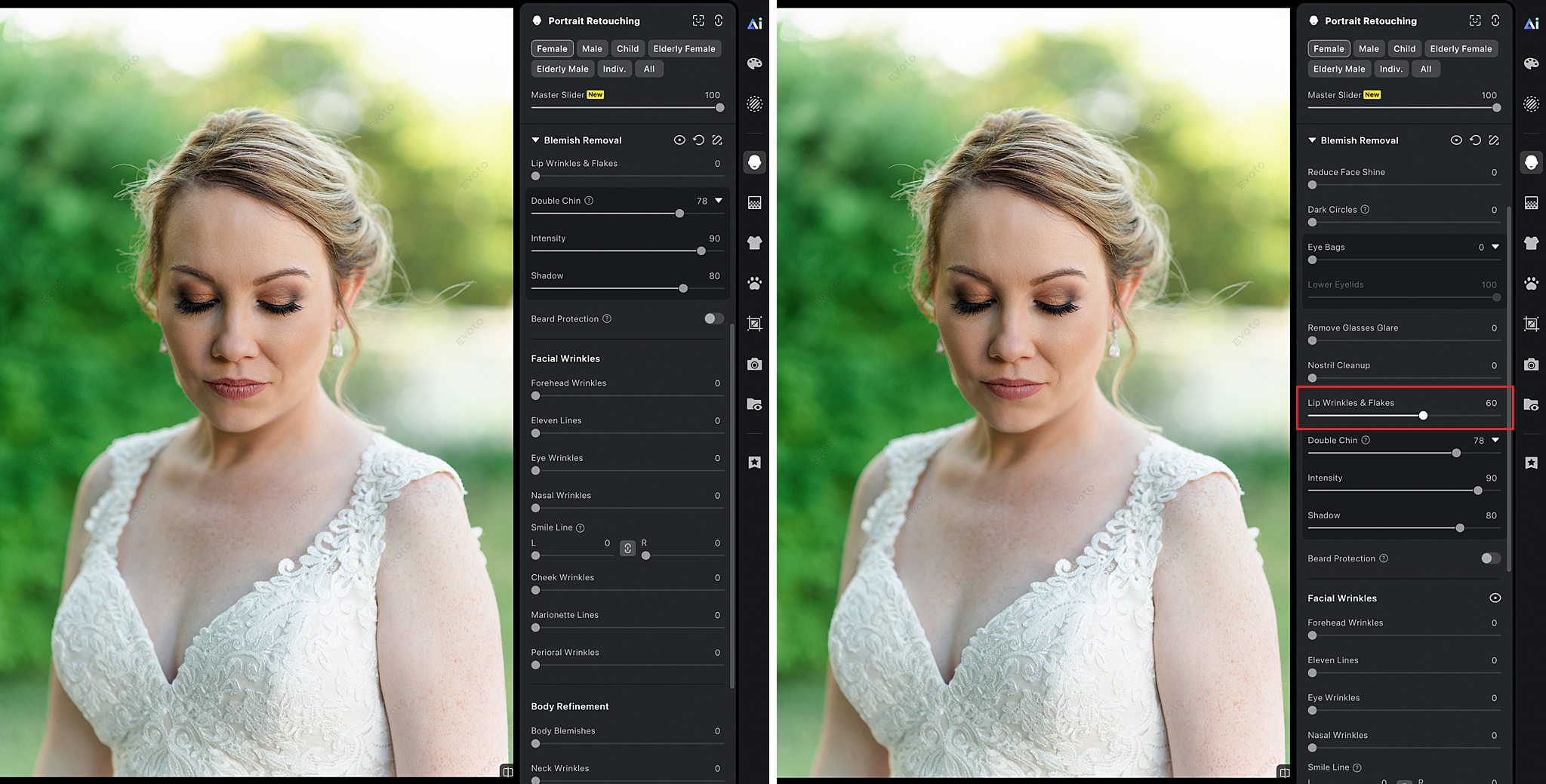
Next, a super useful tool is the Lip Wrinkle & Flakes. It helps with dry and chapped lips. Look how natural it makes everything look!
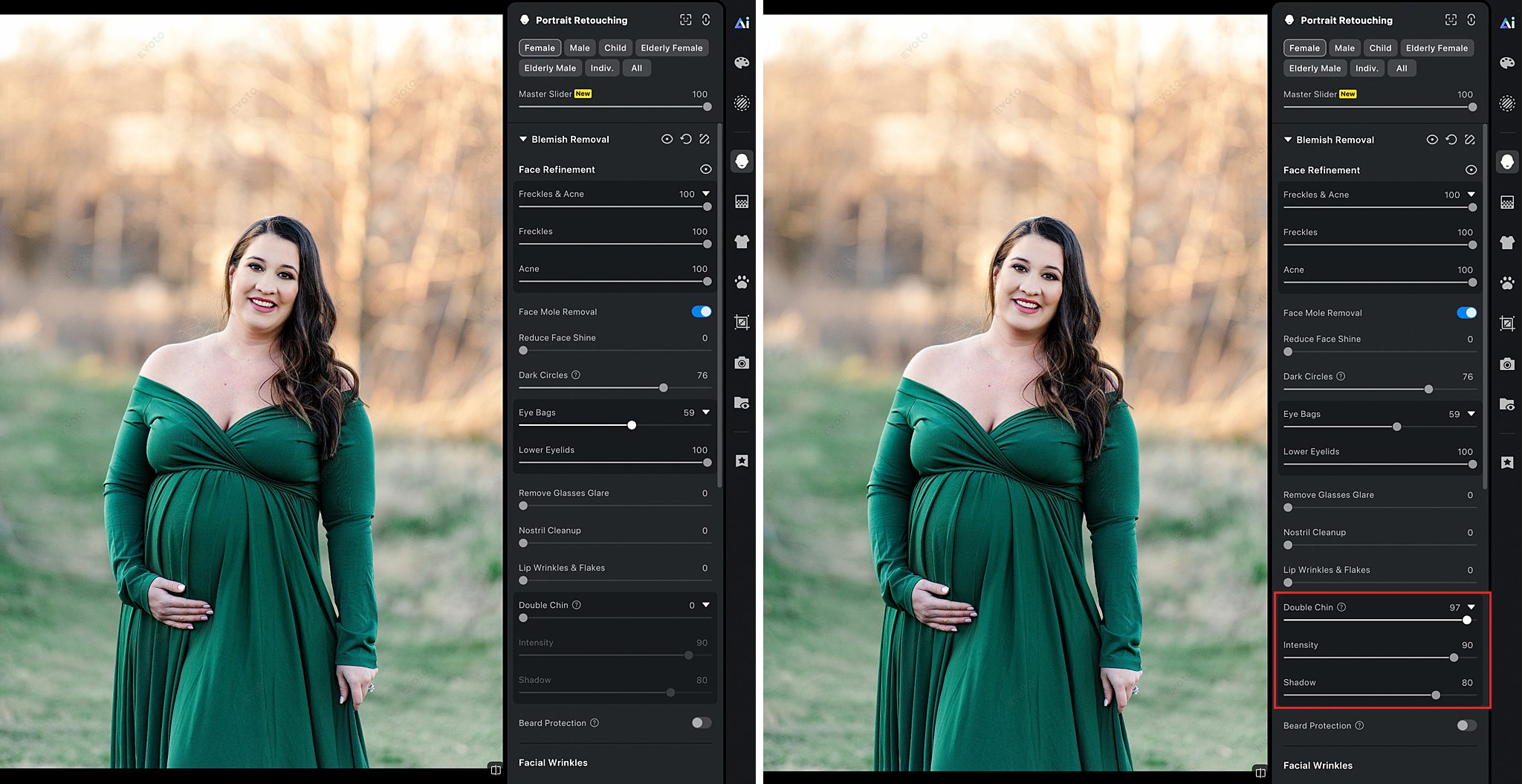
Another useful tool is the Double Chin Removal Tool. Sometimes I may have an amazing image, but the angle is slightly off. And it’s no fault of the client, but even tilting the head can create the appearance of a double chin. Evoto makes it so easy to remove it. How amazing is that?!
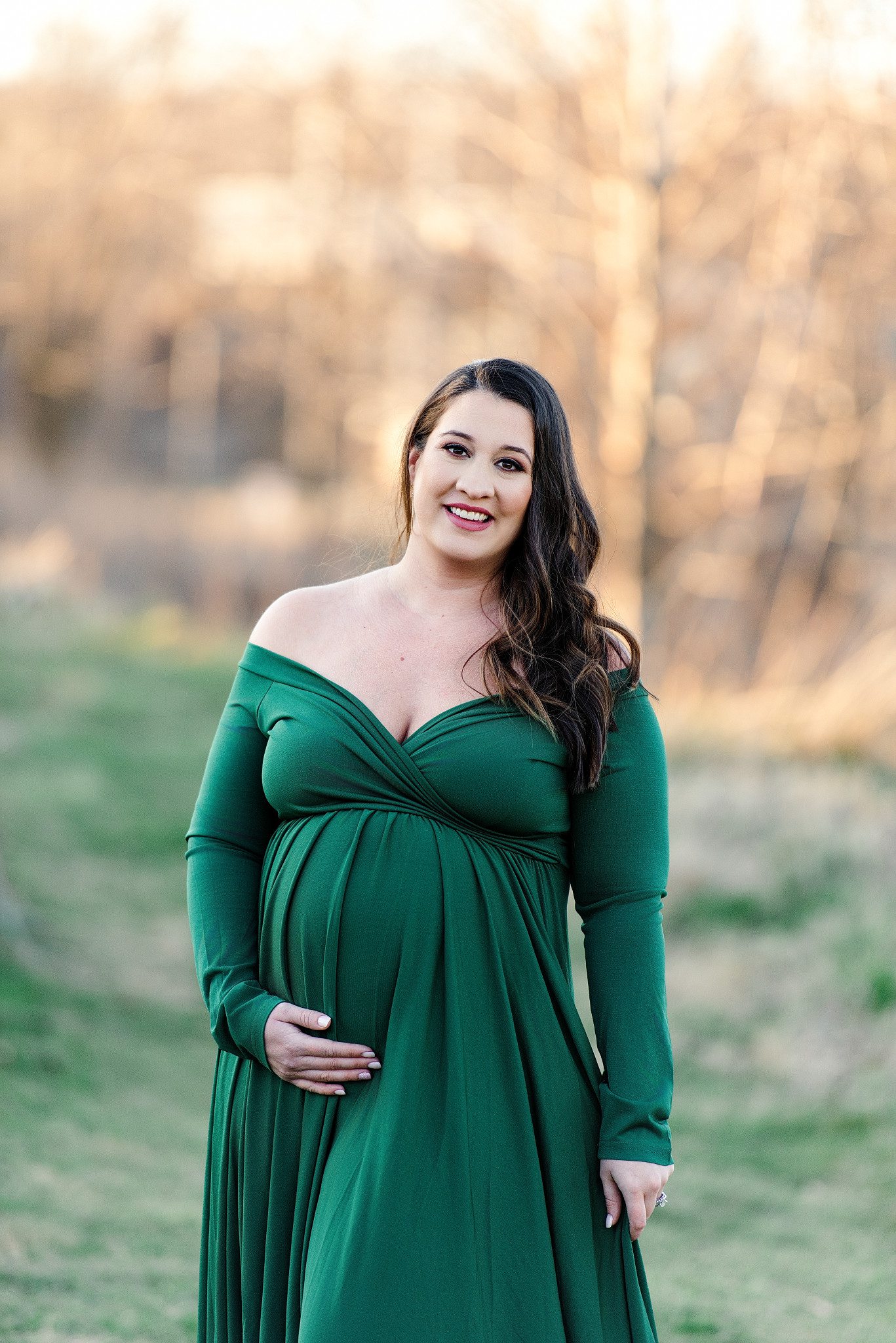
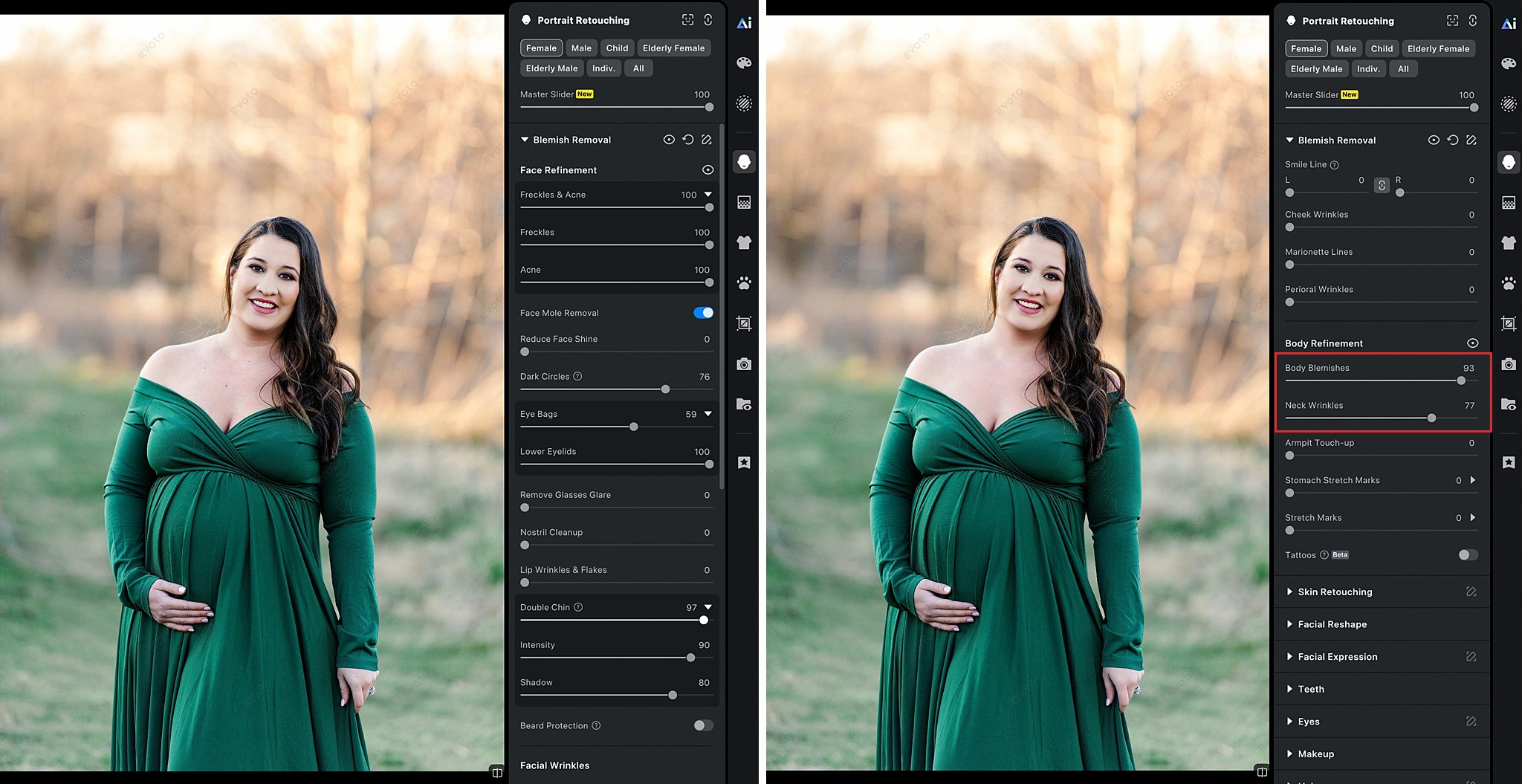
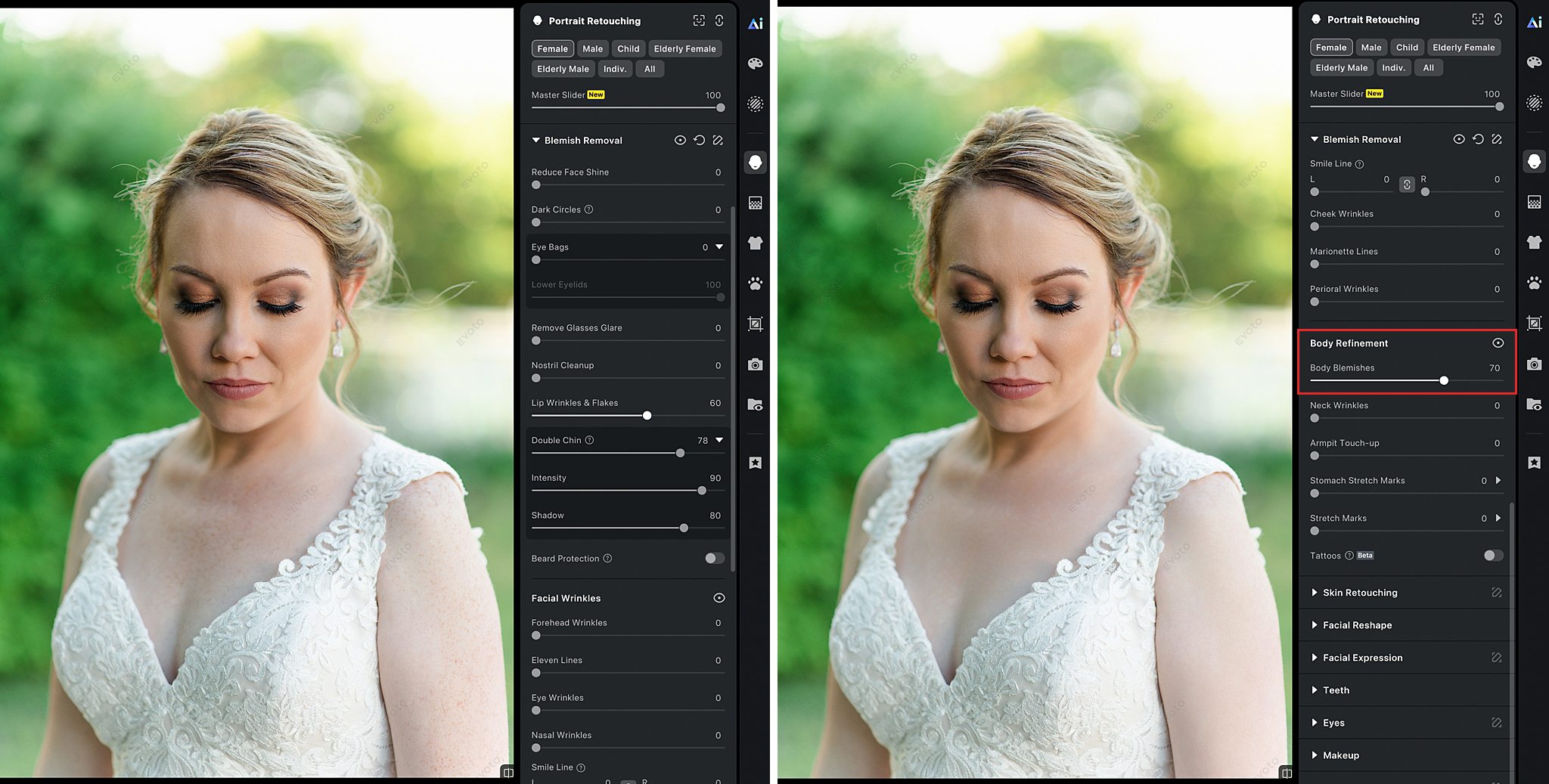
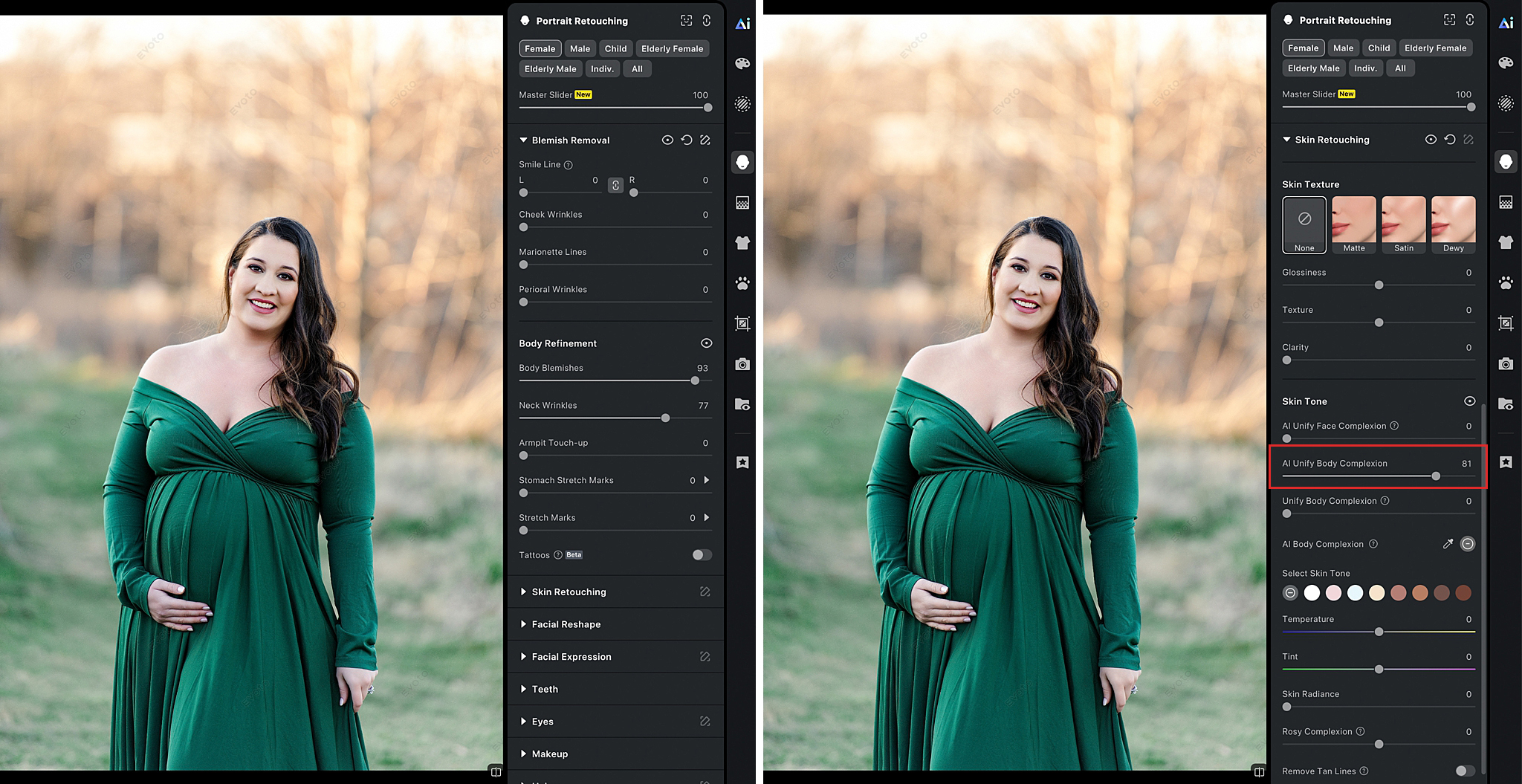
Another fantastic tool is the Body Refinement tool. Evoto AI makes it really easy to remove body blemishes and neck wrinkles. Here’s what one click did for this maternity session.
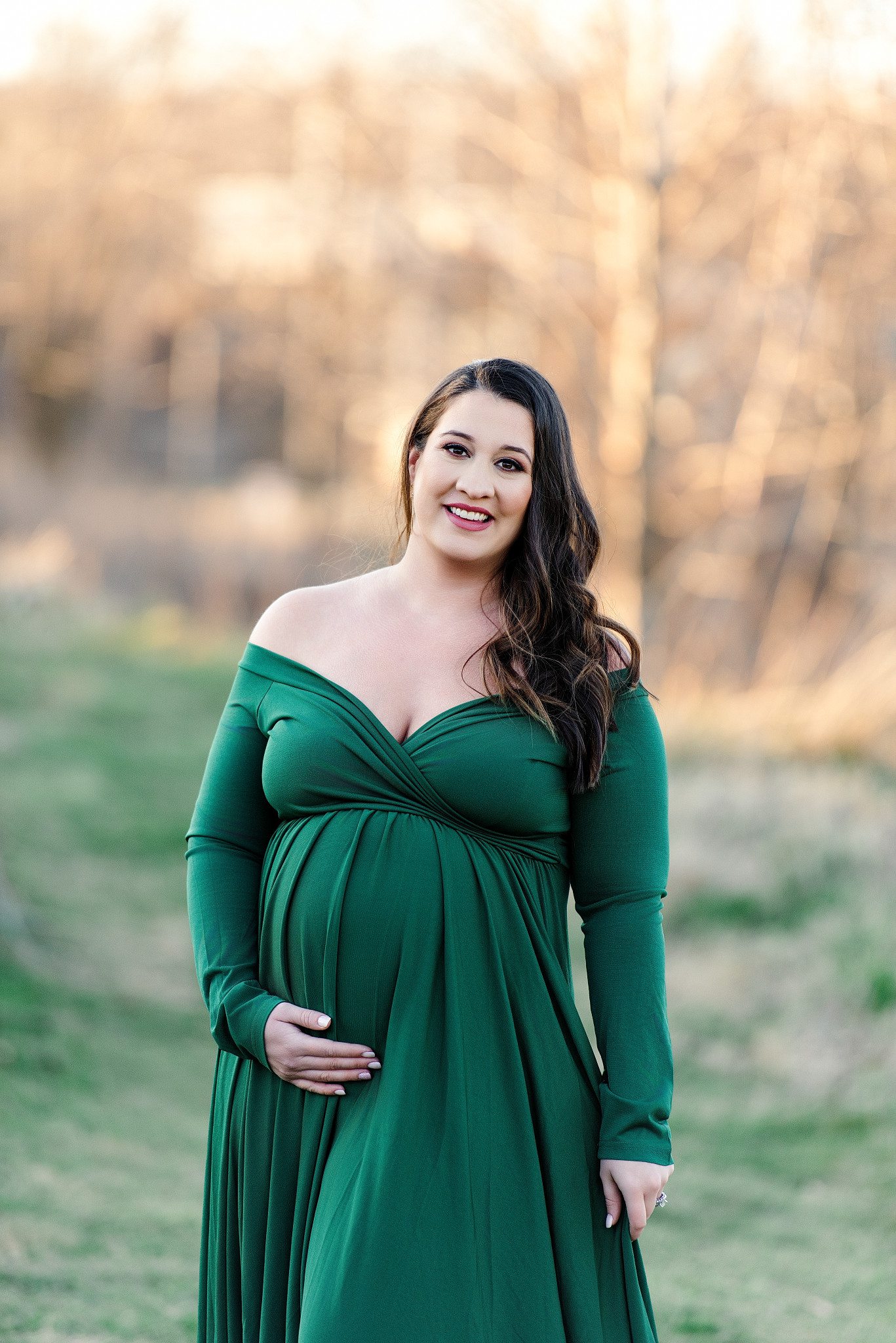
And here is another example from a wedding.
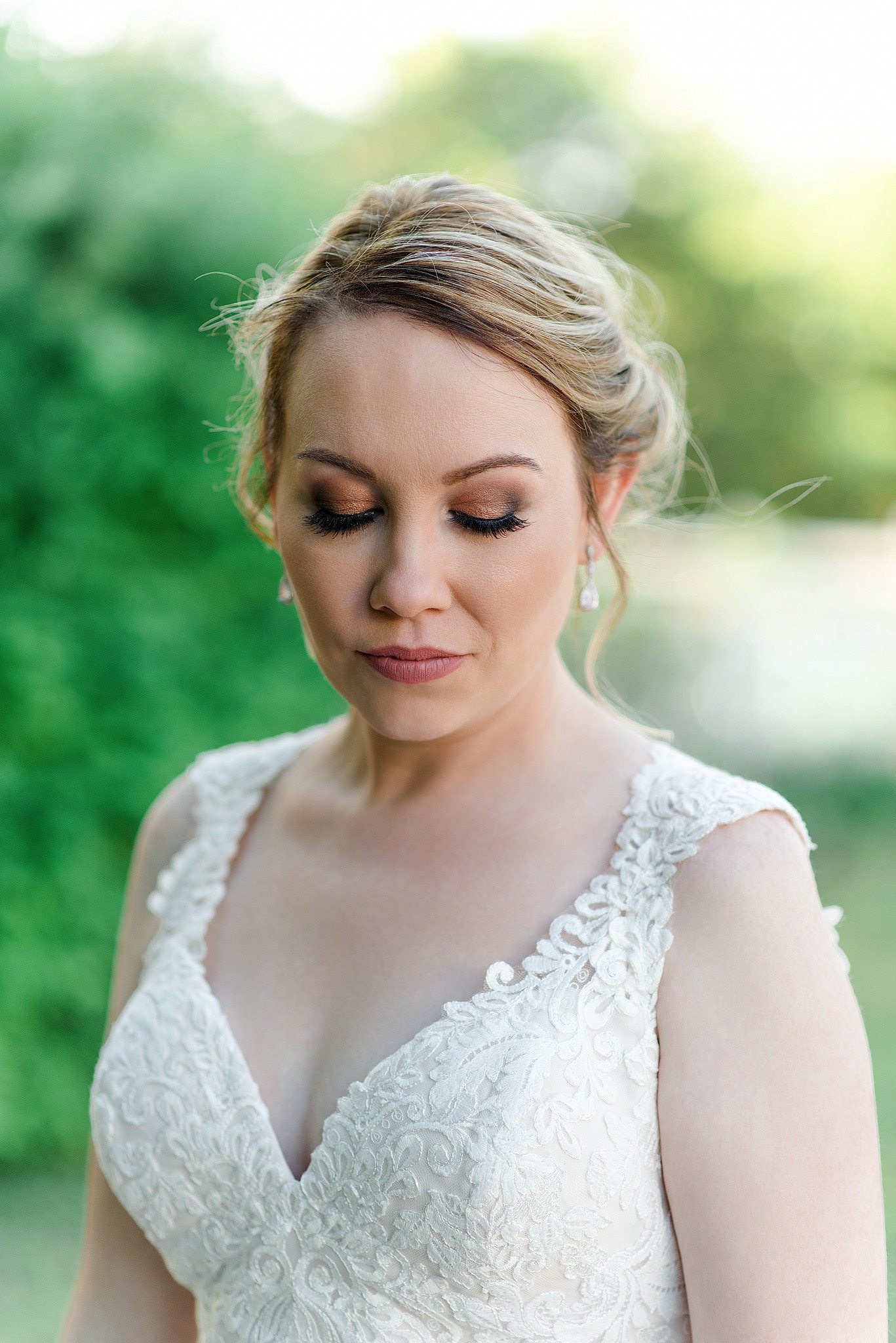
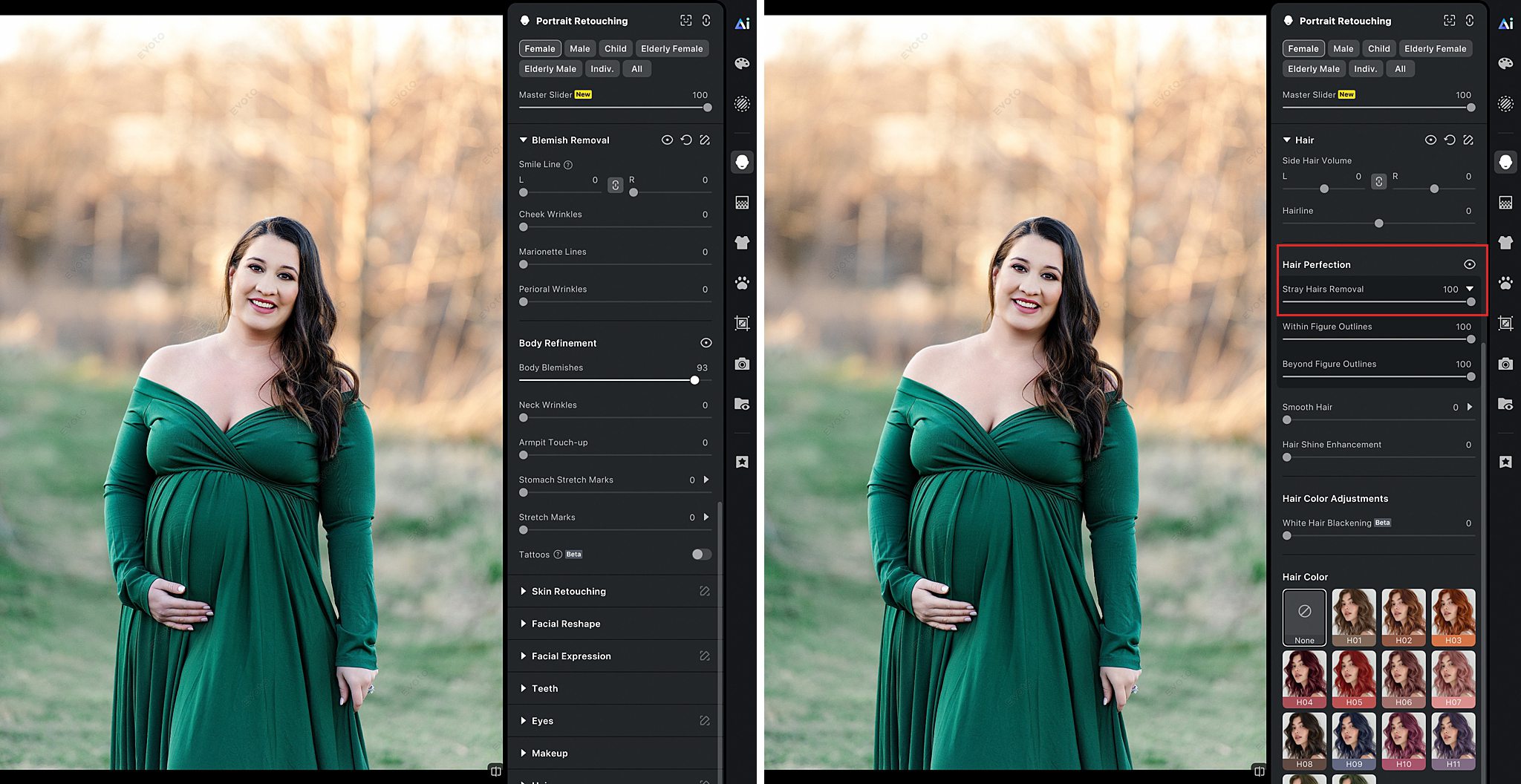
Stray hairs have been such a headache in the past, and it feels like I could never get it right in post. I would also spend SO much time in Photoshop trying to remove them, but now all I have to do is move the Stray Hair Removal slider up and I get perfect results each time.
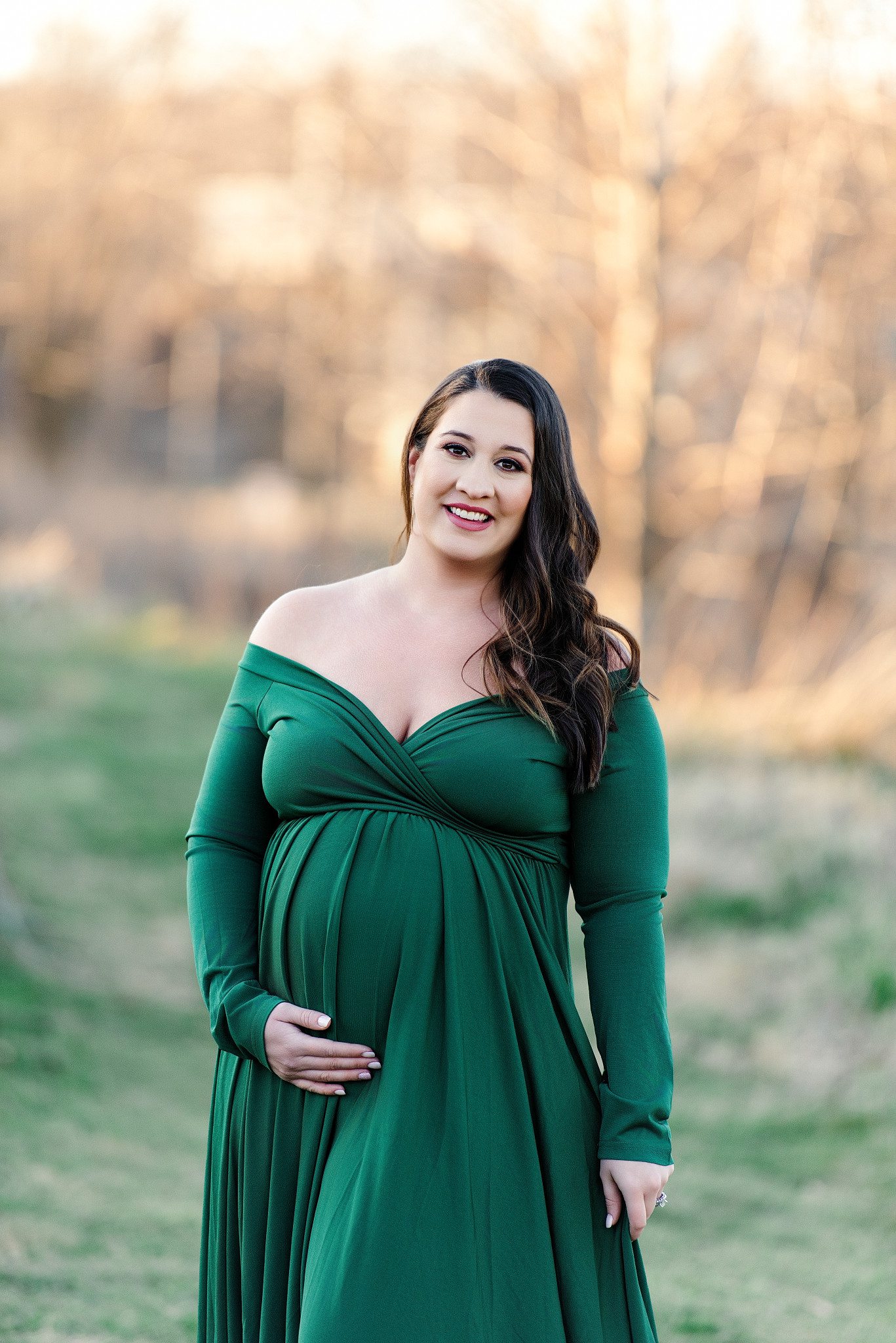
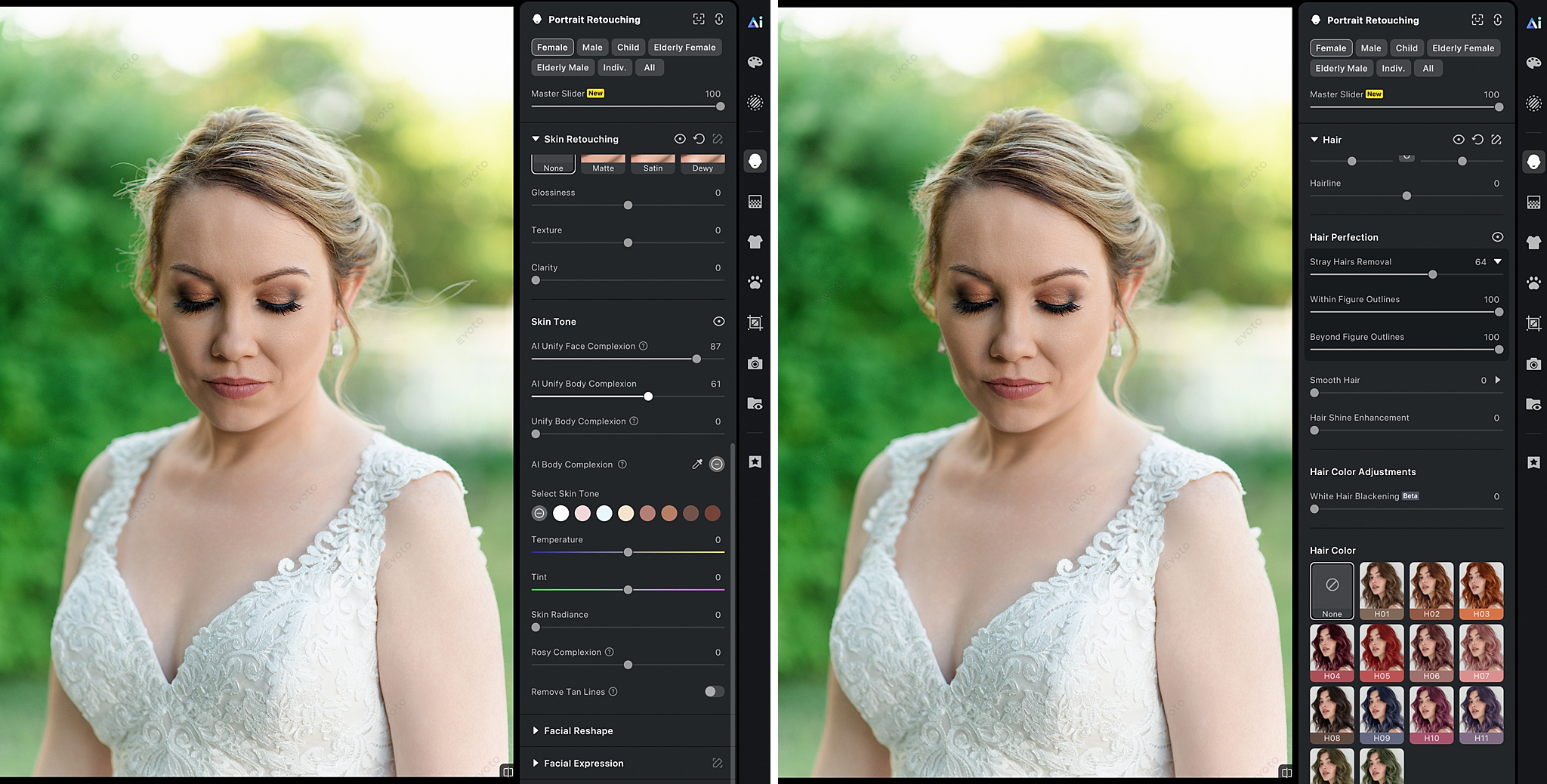
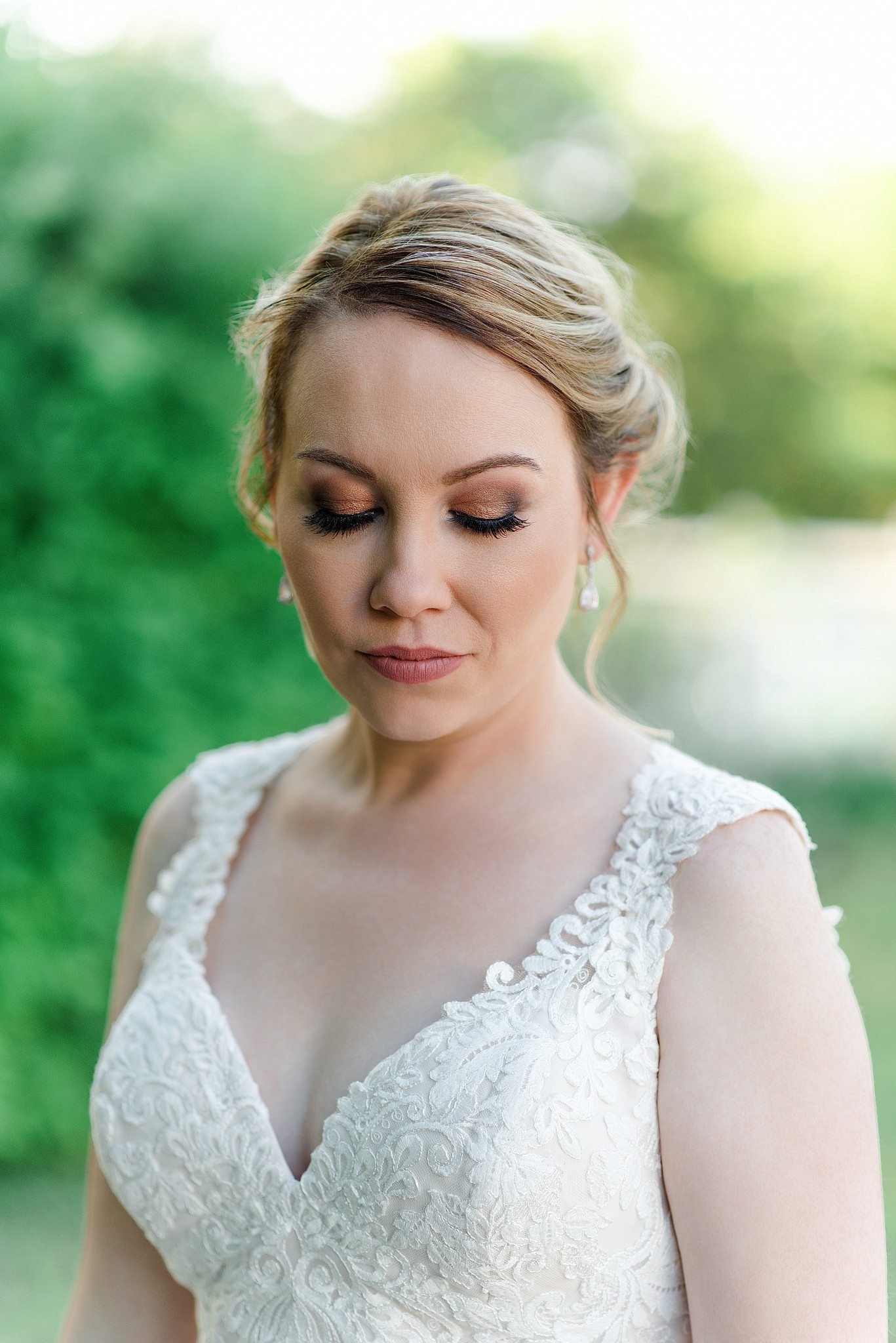
One issue I encounter quite often when photographing female subjects is that the face makeup doesn’t always blend with the neck and skin tones. Well, Evoto has a slider that fixes that! It’s called the AI Unify Body Complexion and it helps blend the face with the rest of the body so that the skin tone is flawless. You can find it under the Skin Retouching Tool. In the image below, the neck and chest area is slightly red. Bring the body complexion slider up, and the skin tone evens out and looks amazing.
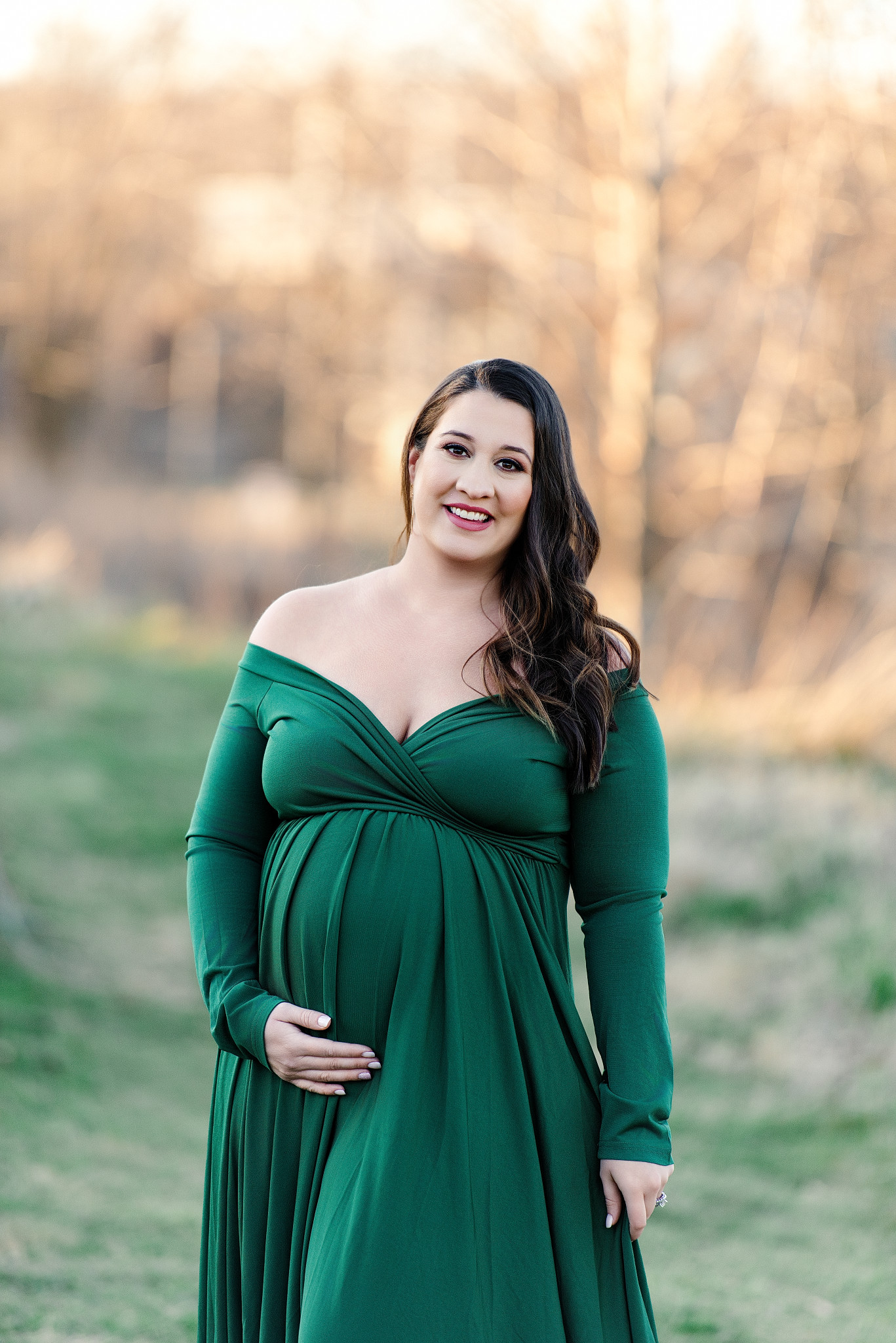
The Portrait Retouching Tool offers so many other incredible ways to retouch an image from teeth, to eyes, hands, hair, and even makeup. I can’t wait for you to start experimenting with it and see how powerful of a tool it is.
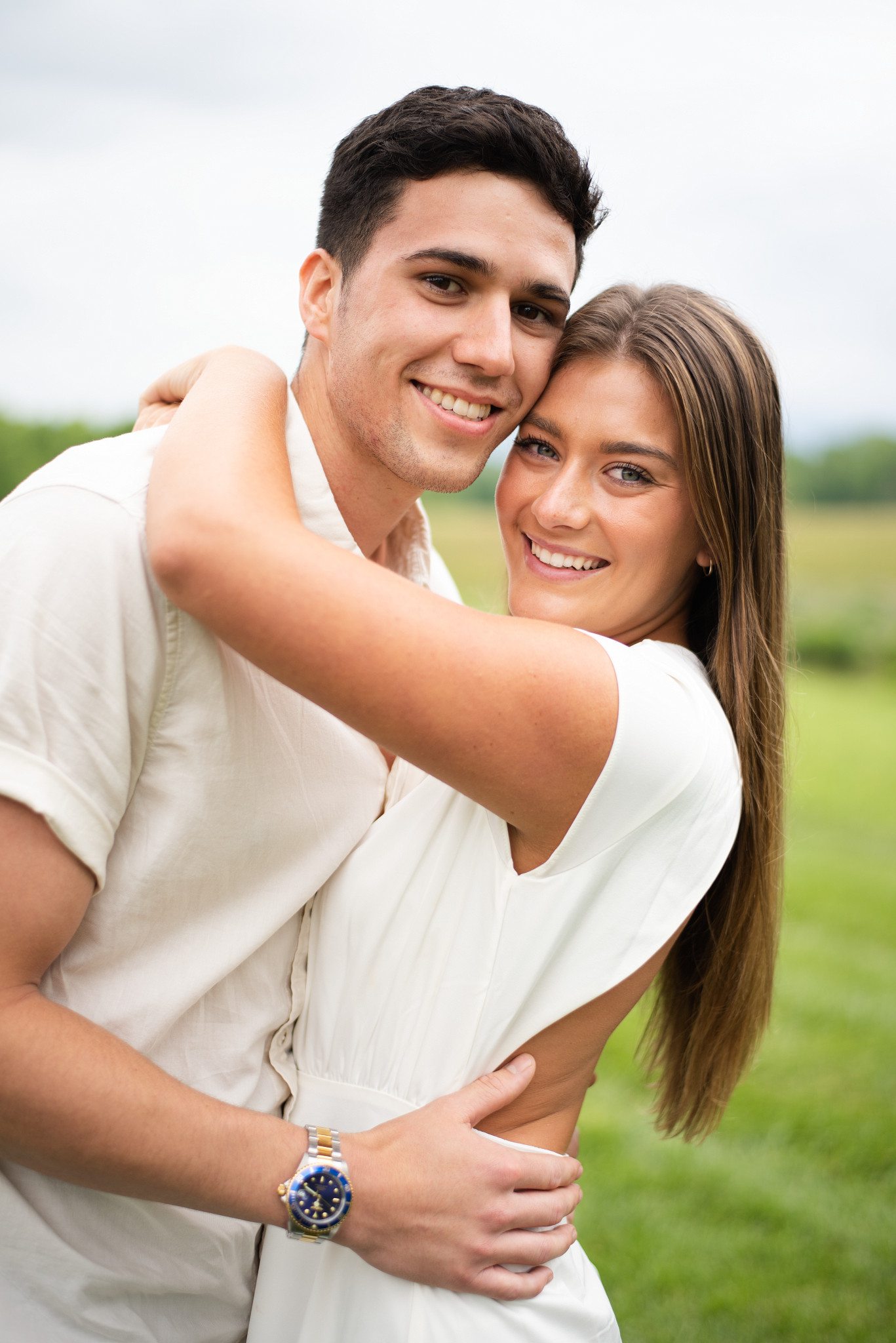
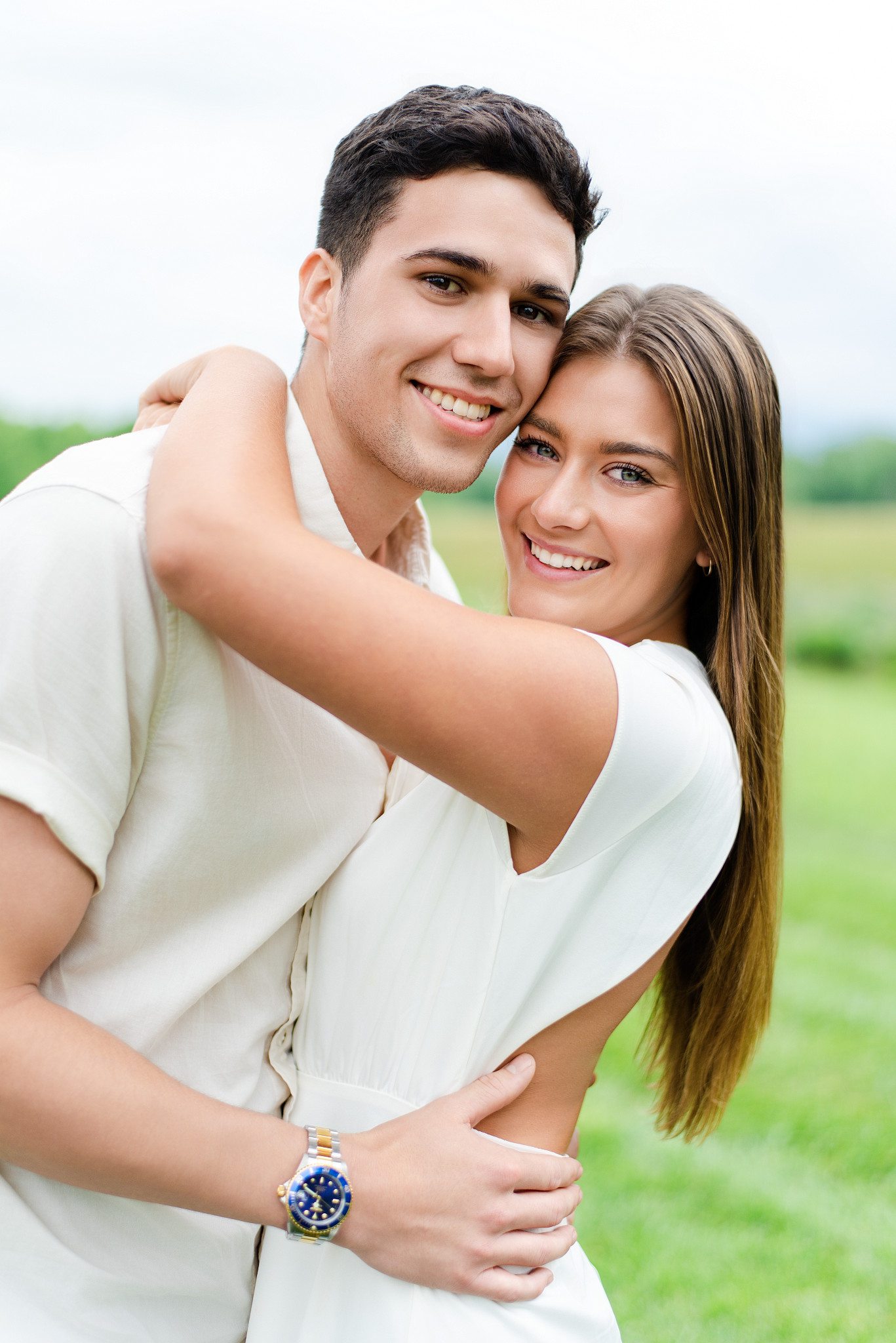
Here are some before and after transformations!
2. Clothes & Accessories Adjustments
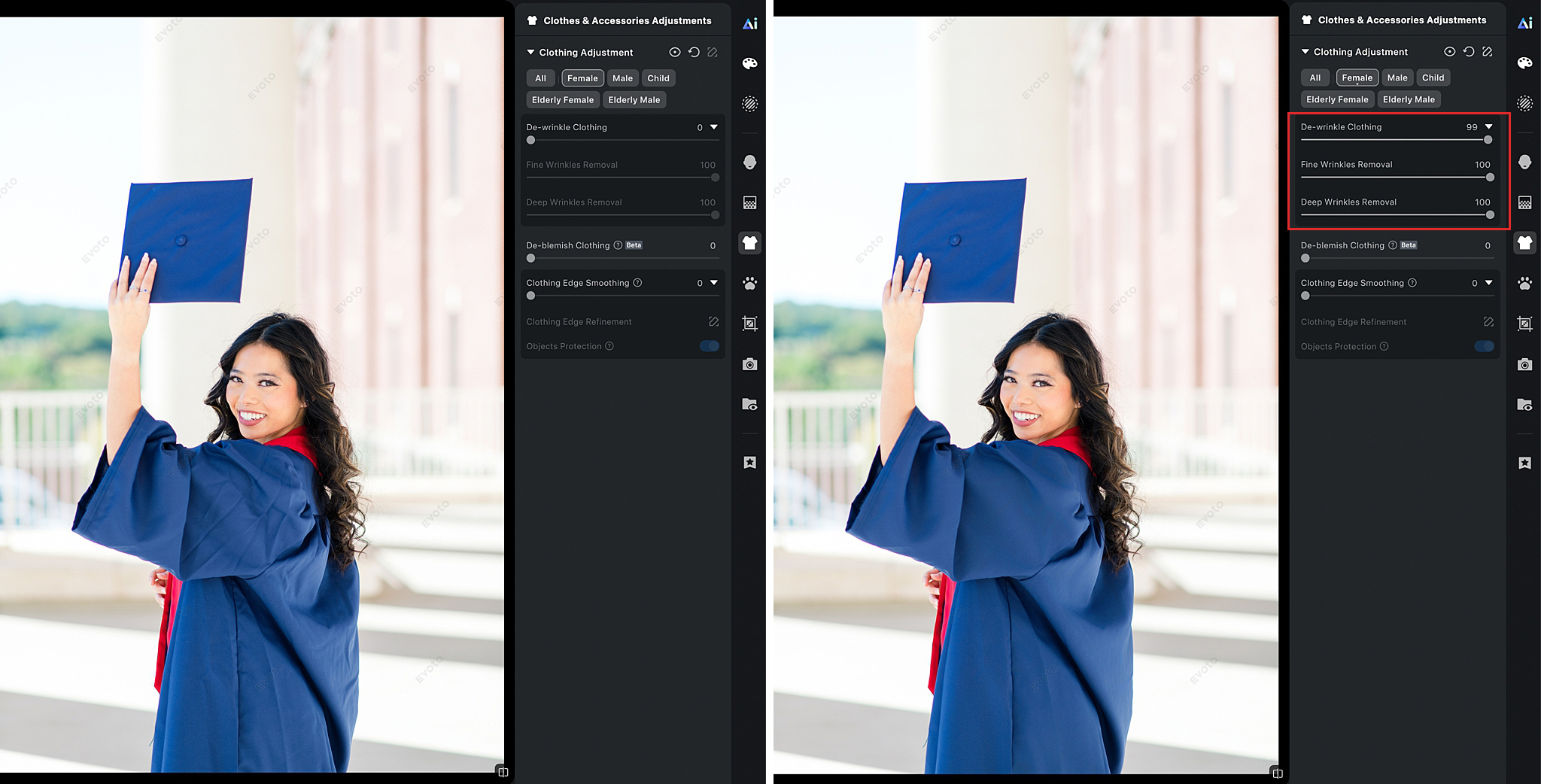
Next, I want to show you another tool I use quite often and that is the Clothes De-Wrinkling Tool. You can find it under the Clothes & Accessories Adjustments Panel. This tool alone is worth creating an Evoto account for. It would take me an insane amount of time to de-wrinkle the gown in the image below, let alone repeating the process for every single image in the gallery. But with Evoto, I can enable this setting to automatically apply to each image. This is seriously mind blowing to me!


3. AI Color Adjustments
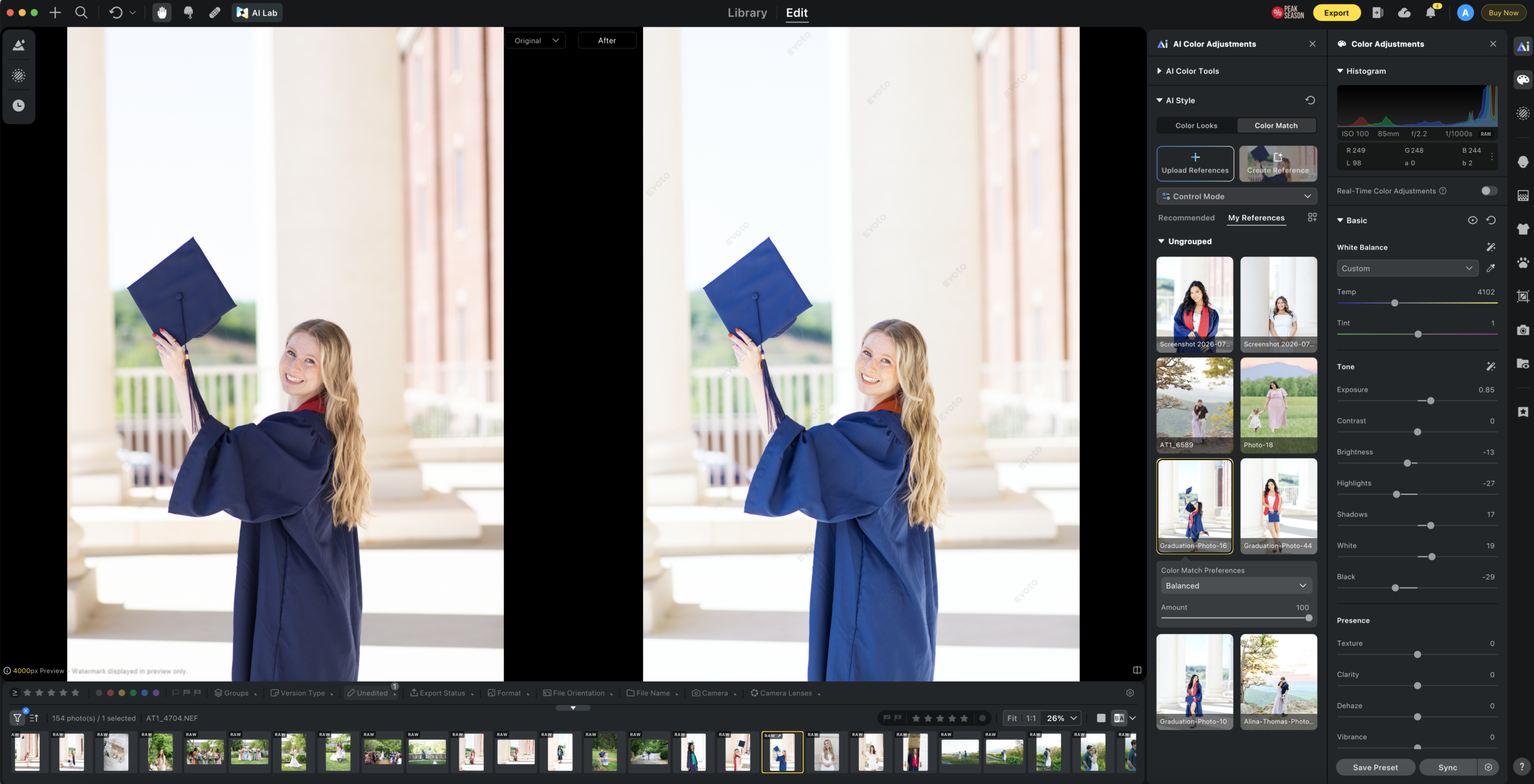
This is unlike anything I’ve seen before in a photo editing software. Most AI editing tools either rely on generic presets or require a huge library of images before they can understand and learn your style. Evoto can learn your desired editing style from just ONE photo.
With the Color Match Tool, you simply upload a fully edited image that you love, and Evoto analyzes the colors, tones, and overall look of that image. Then, with one click, it uses that image as a reference to recreate that same feel on the photo you’re editing. Not only that, but you also have full control over the new edit to make any changes you would like.
This is also great if you love a particular editing style and you’re trying to recreate it. Evoto helps you reverse engineer any style which is pretty powerful. Personally, I use this feature when I photograph multiple sessions at the same location. For example, my graduation sessions are all shot at the same location and the lighting is pretty consistent. To maintain a consistent look across all my sessions, I simply upload my reference image (left photo) and let Evoto color match it to my raw file (right photo).
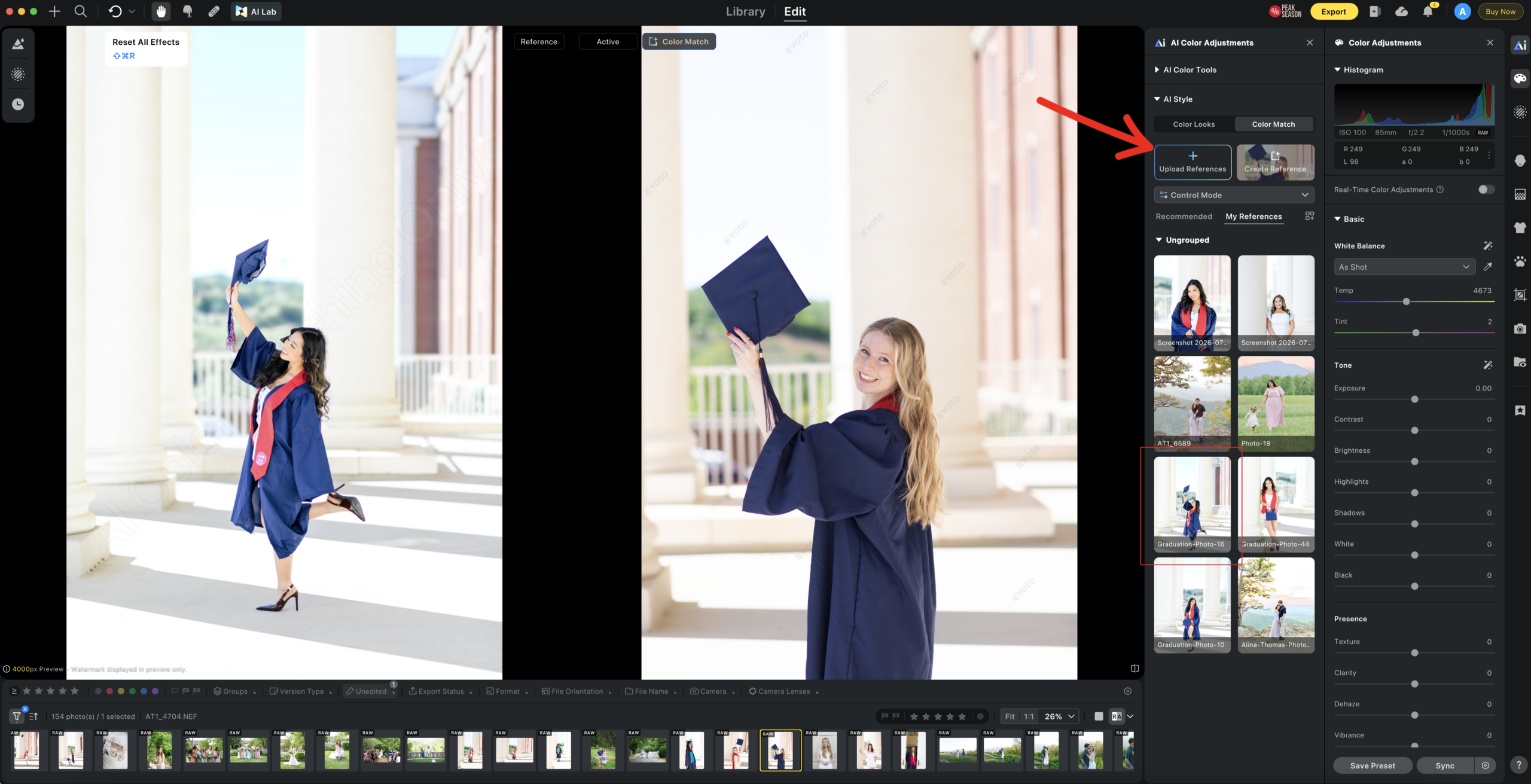
Below is the one click edit. Truly mind blowing how accurate it is! If, for some reason, it’s too overexposed or underexposed, you can also control the amount of editing you want applied to your photo. And, of course, if you want to fine tune it even more, you can use the sliders on the right side panel for even more control.
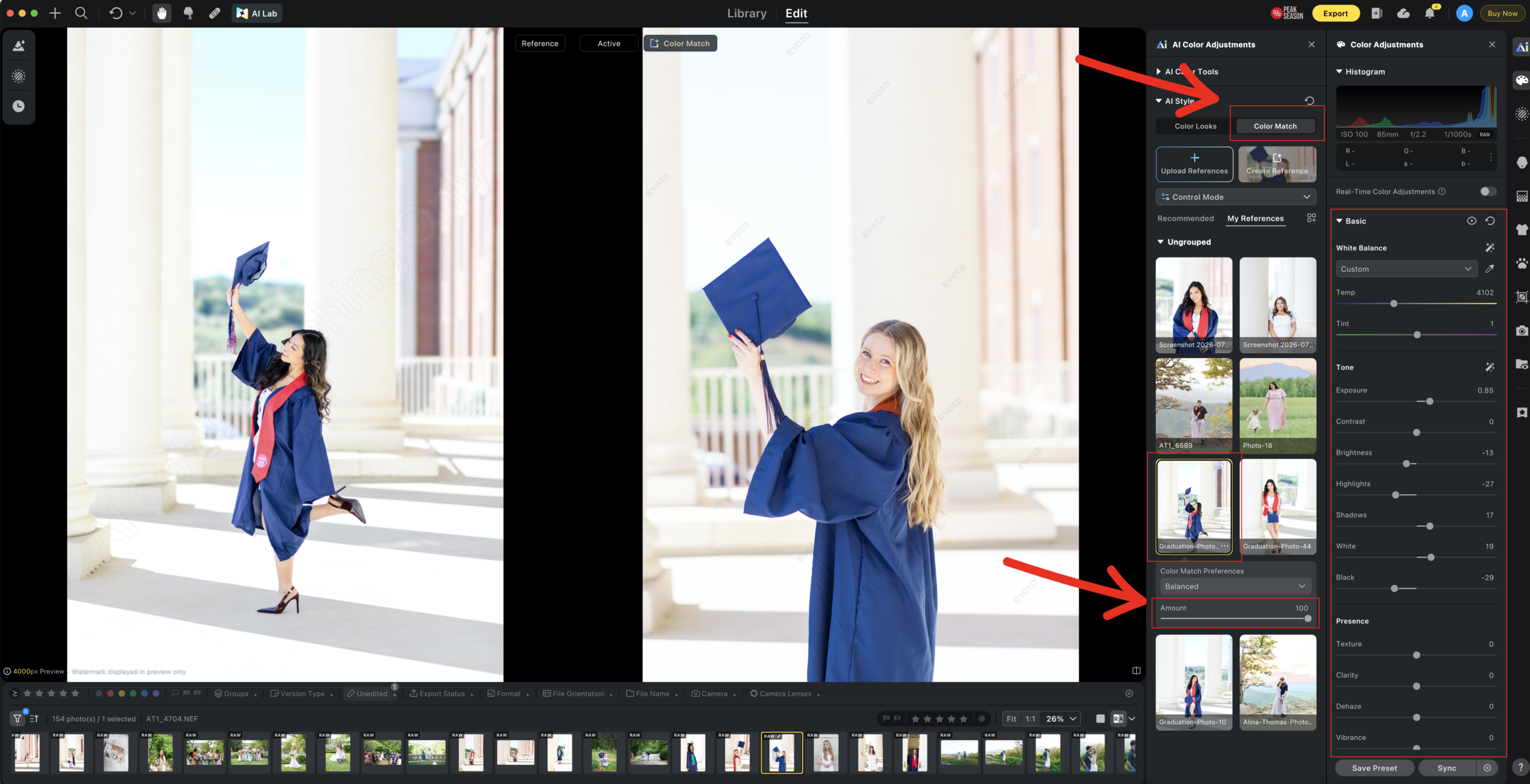
And here’s the before and after image. This was a one click edit!!


4. AI Transform Corrections
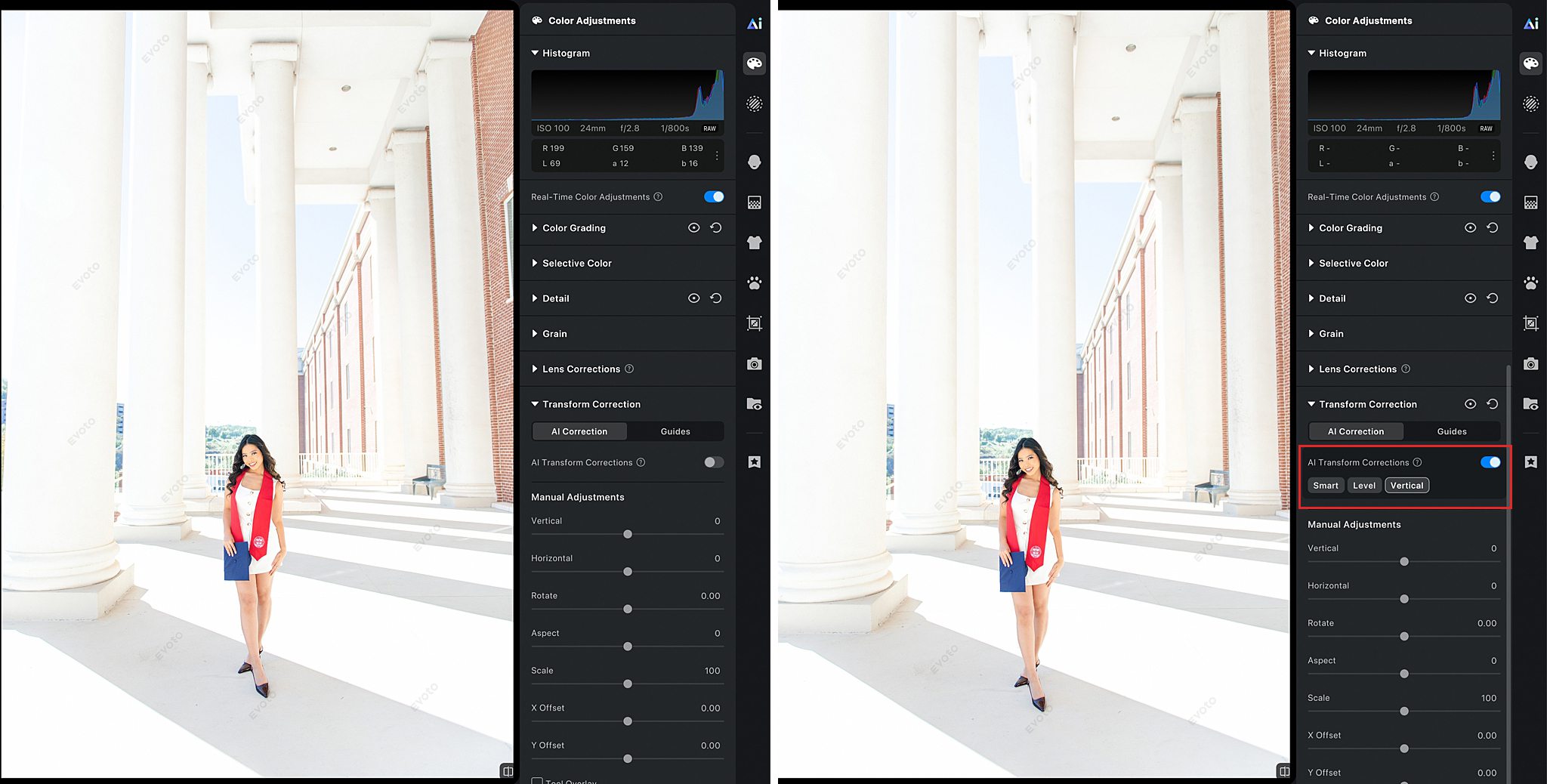
Alright, this might be my new favorite thing ever! If you’ve ever shot using a wide angle lens, you know that buildings or columns (like in the image below) will appear distorted. The AI Transform Corrections Tool automatically fixes perspective distortions in both vertical and horizontal directions. The columns don’t look like they are leaning anymore and I still get that beautiful wide angle. Whaaat? This is beyond incredible.


5. Presets
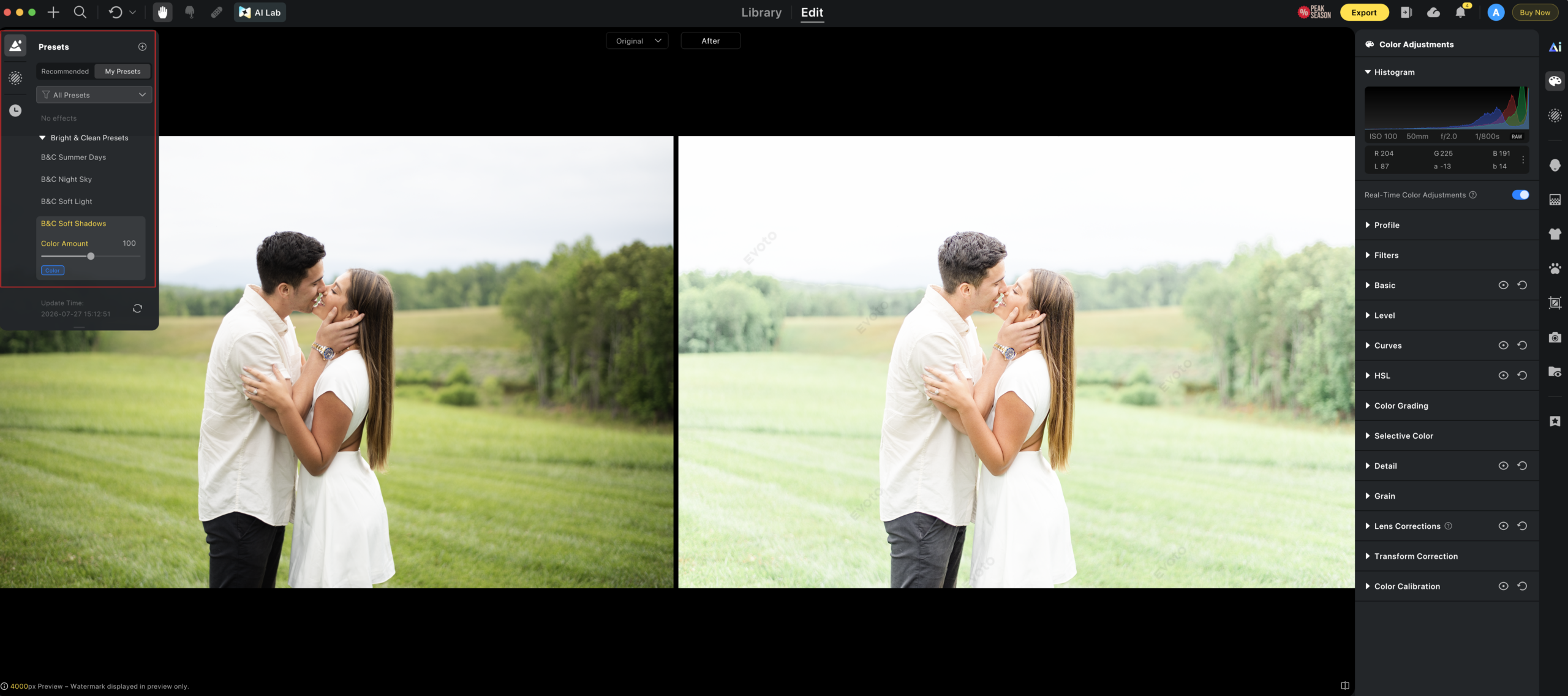
If you are already using presets that you absolutely love (like the Bright & Clean Presets), you can now upload them to Evoto. But here’s what completely blew me away… 👉 You know how when you apply a preset in Lightroom, it’s completely hit or miss, because unless your image was shot in perfect lighting, a predetermined set of settings won’t work for ALL images the same way? Well, here’s where Evoto shines. See how in the image below I applied one of my favorite presets from the Bright & Clean collection, the Cloudy Days Preset? The predetermined settings overpowered the image and made it look overexposed. See below.👇
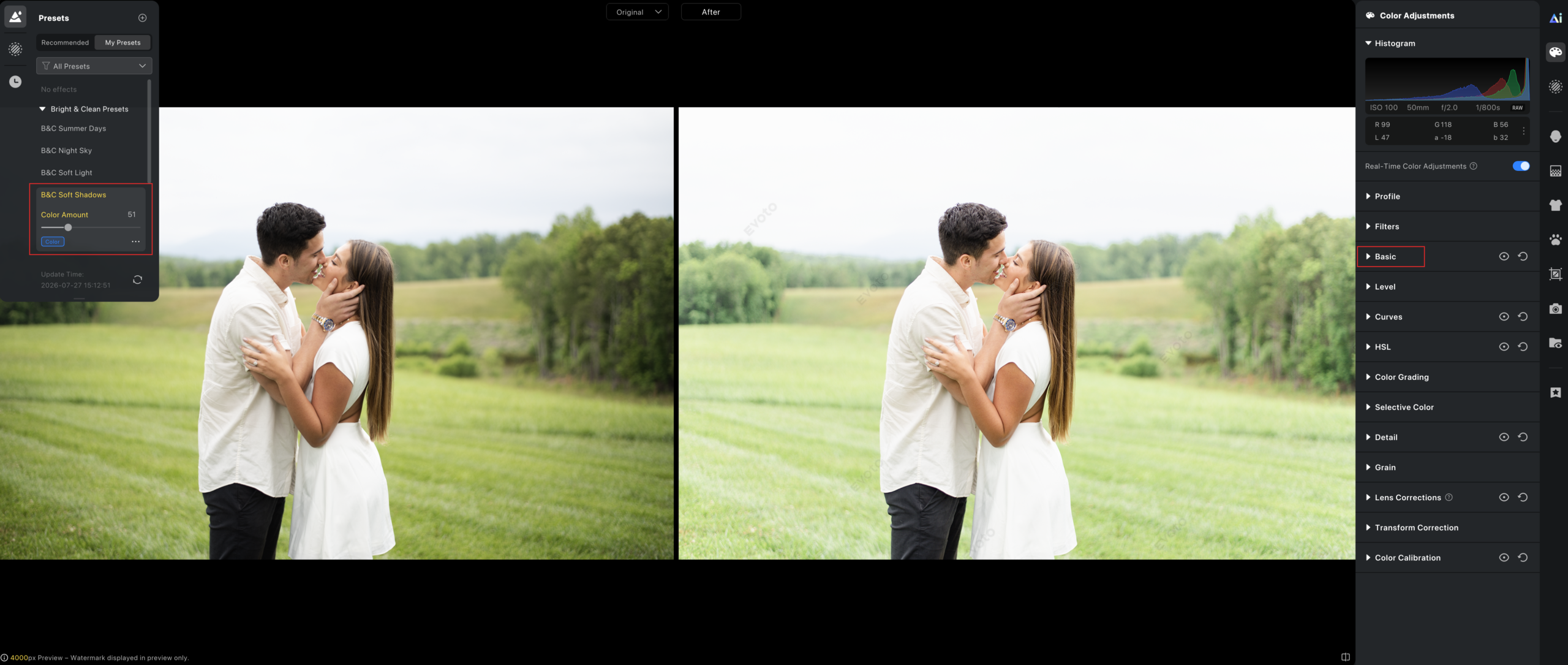
However, if I reduce the intensity of the preset to about 51, I now have a perfectly edited image in my light & airy style. Of course, if I want to edit anything further, I have complete control in the Basic Panel on the right hand side. I have never seen anything like it and I am truly amazed by how powerful this is!
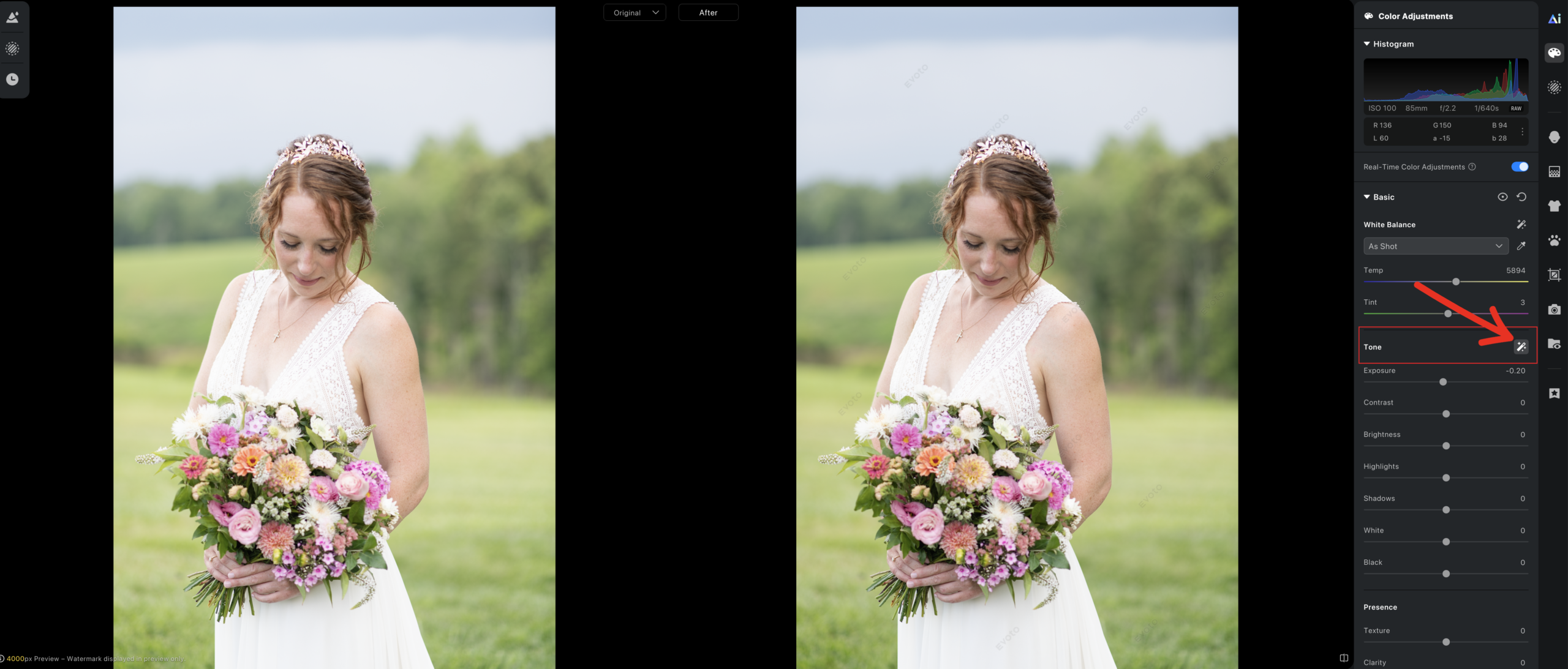
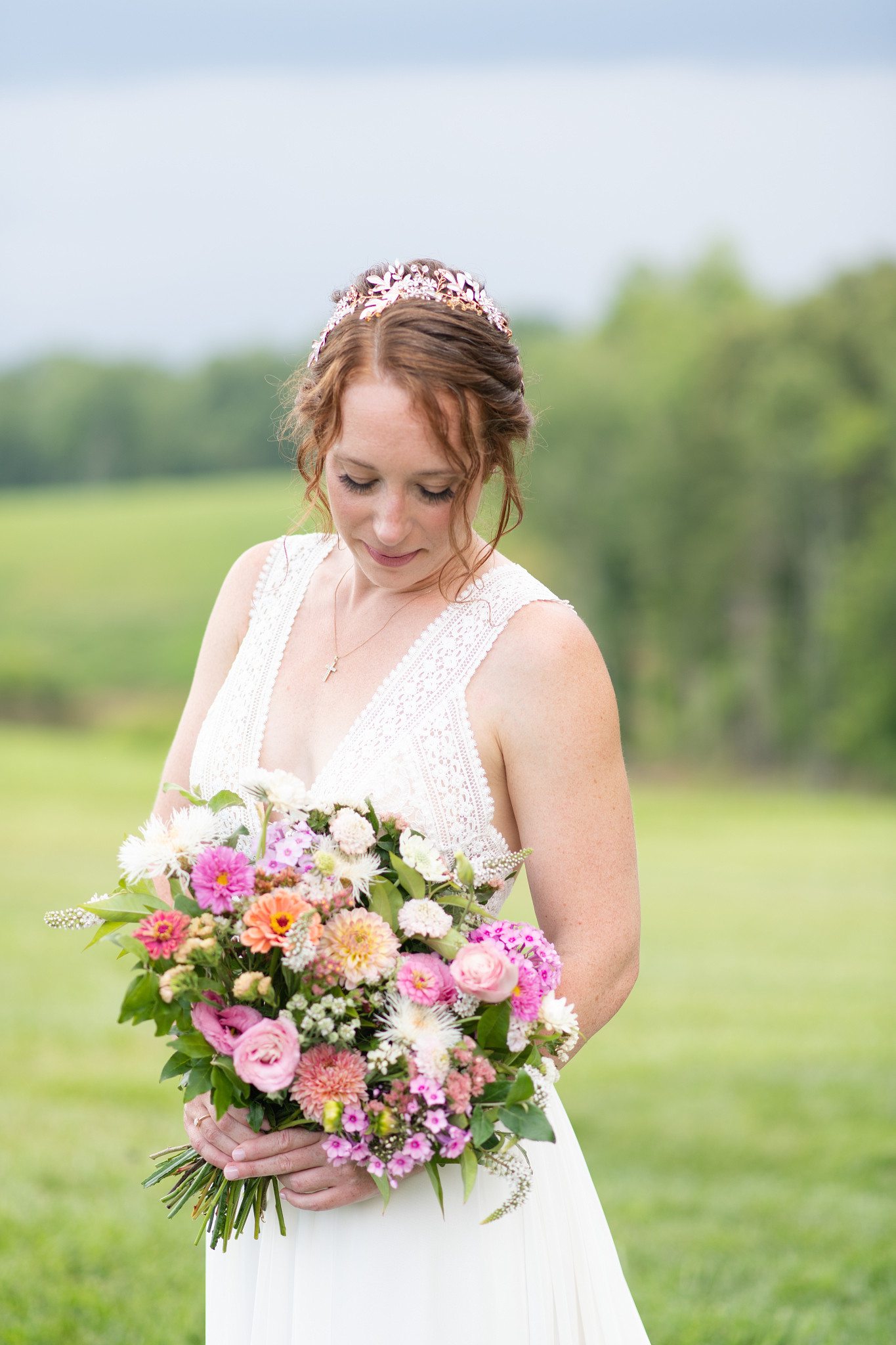
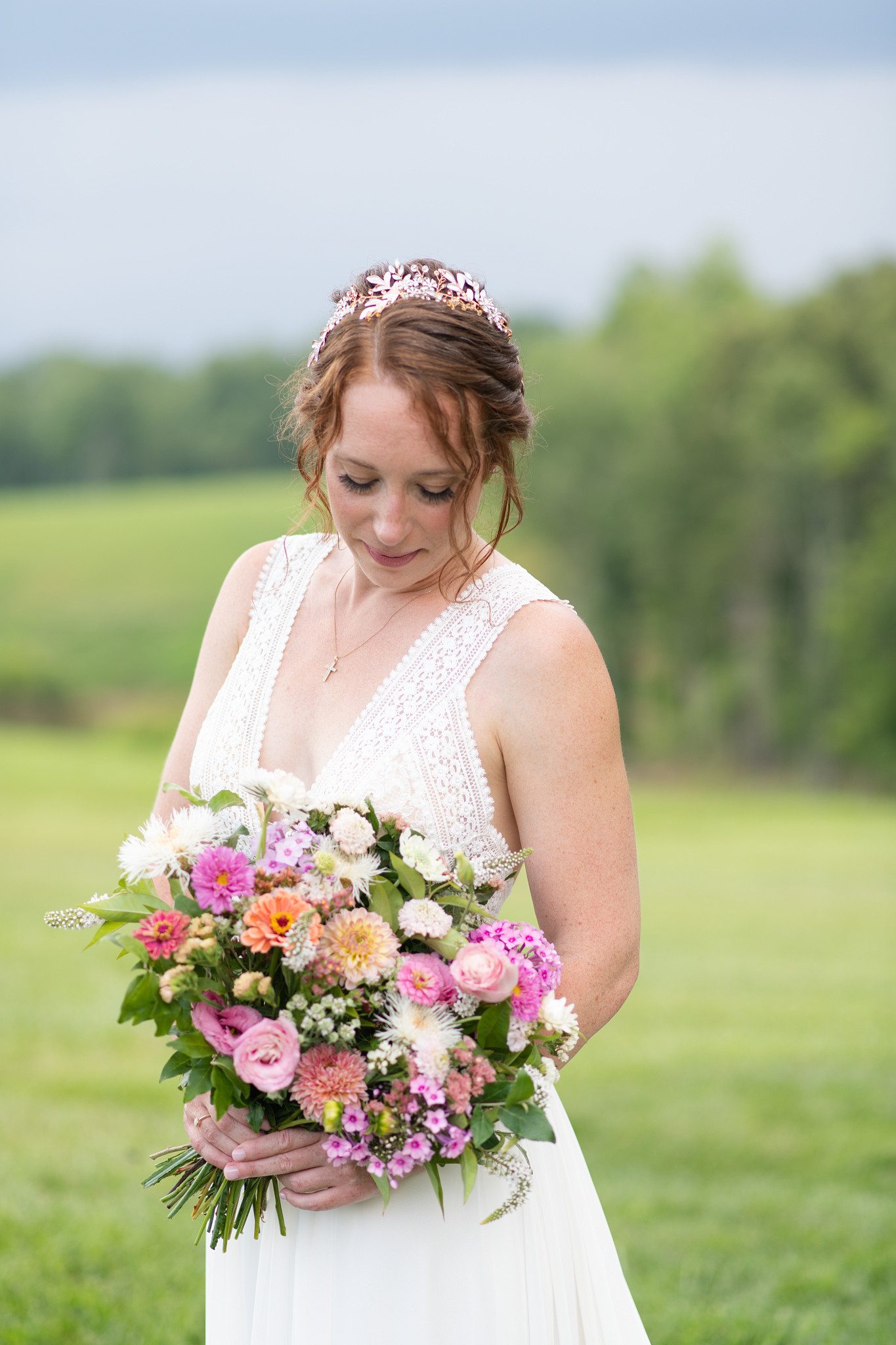
Another tool that I love and use is the AI Exposure Adjustment. It’s right next to the Tone Adjustment in the Basic Panel. It’s amazing at evening out the exposure for a more consistent look. For example, in the image below I exposed for the skin, which made part of the dress overexposed. This is very tricky when shooting weddings because you don’t want to lose detail in the dress. By clicking the AI Exposure Adjustment, Evoto completely evens out the image for you so you can have a great starting base for editing.
These are just some of my favorite tools inside Evoto that I love and use consistently. And they have been a complete game changer not only for the way I edit, but to the photography industry overall. What makes Evoto great is not that it’s an amazing retouching tool, but it is also an editing software. It single handedly replaces Lightroom and Photoshop combined. You now have access to most of the features you would in both pieces of software, and then some.
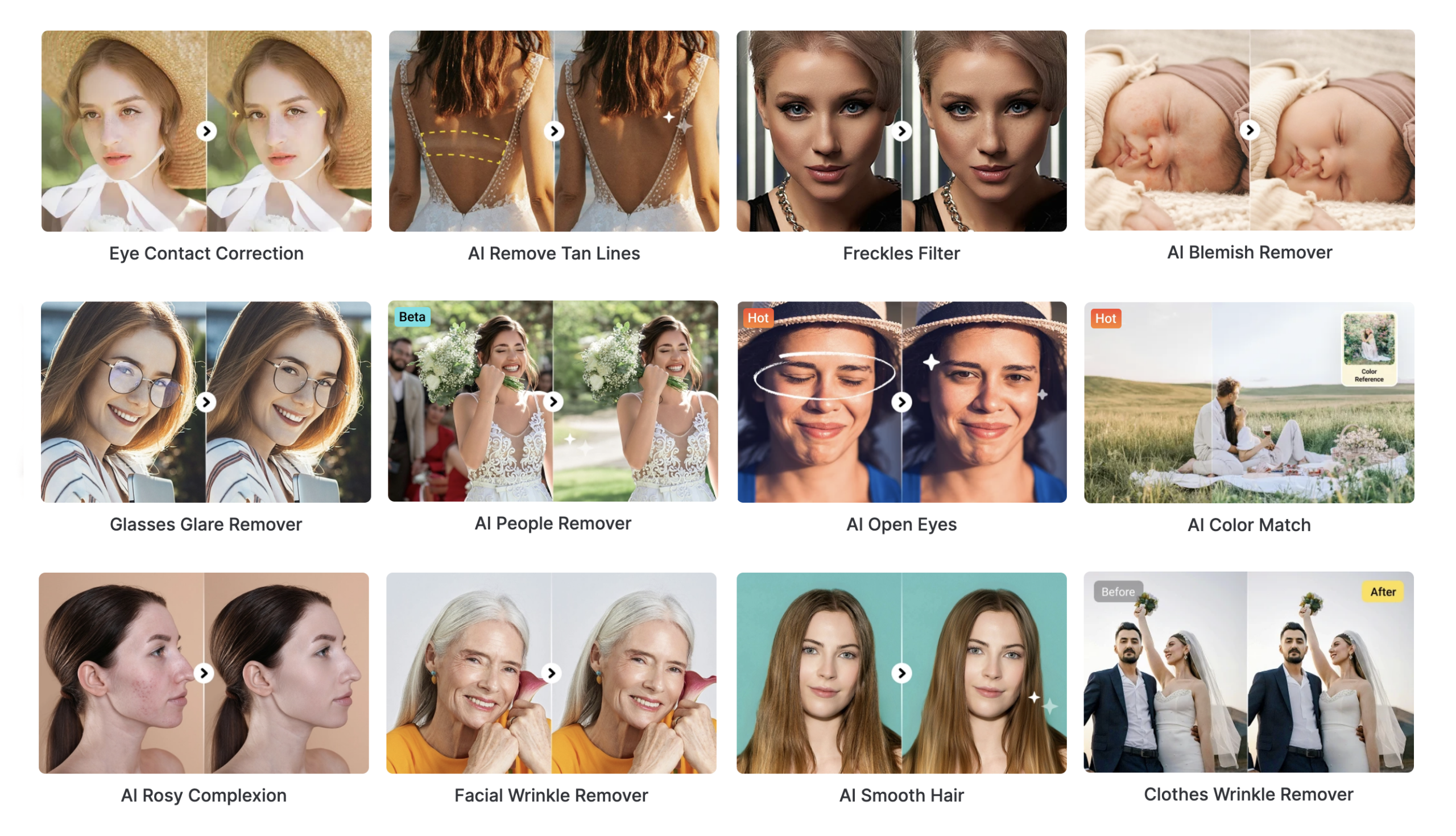
After using Evoto AI in my own workflow, I honestly can’t imagine editing without it. It has taken some of the most repetitive and time consuming parts of photo editing and turned them into something I barely have to think about anymore. Instead of spending hours cleaning up every image in Photoshop, I can focus more on the creative side of editing and get galleries back to my couples much faster.
If you’ve made it this far, I think you’re going to have a lot of fun with Evoto. The examples in this post are just scratching the surface. So here’s my challenge for you: upload just one of your favorite images and see what Evoto can do. I have a felling you’ll know within the first few minutes whether Evoto belongs in your workflow. If you want to see what Evoto can do with your editing style and your own images, create your Evoto AI account here and start experimenting.
As a thank you for reading, Evoto gave me an exclusive discount to share with my audience that isn’t available anywhere else. Since Evoto doesn’t normally offer discounts on direct purchases, this is a nice little bonus if you decide it’s the right fit for you. Just use code ALINATHOMAS at checkout to save 15% on annual plans (under 9,000 credits) or 20% on pay-as-you-go credits.
To give Evoto a try, simply click here to get 50 FREE editing credits on me.